Collaborator Types (8 min)
Completion requirements
01 Getting Started
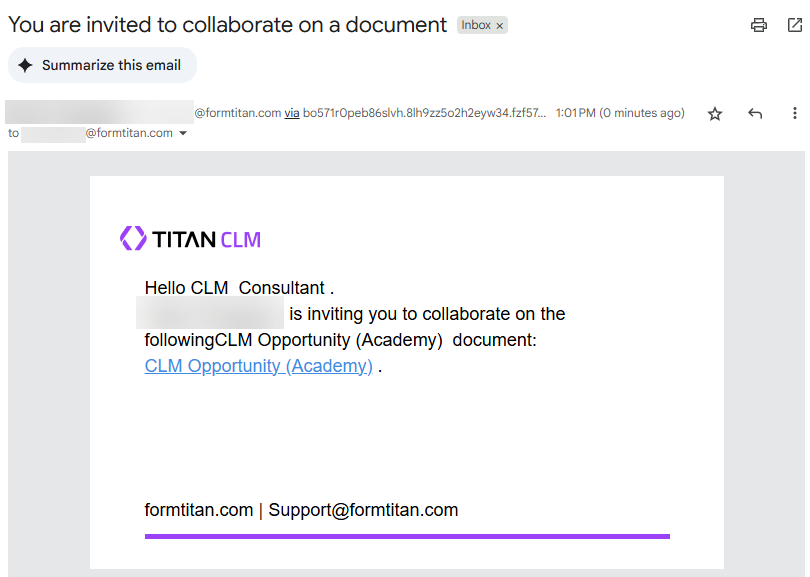
This lesson will outline the different permission levels available for each collaborator at the different CLM stages.
02 Comments Only vs Full Changes
Collaborators can have comment-only access, which allows them to leave comments but not make edits. This is ideal for final review stages and useful when sharing the document with external reviewers. It helps maintain control and compliance.
A typical use case is where reviews must be passed through a central legal team for changes. CLM allows users to make direct edits, including red-line text edits and tracked changes.
Within the CLM tool, you can dictate the different levels of permissions.
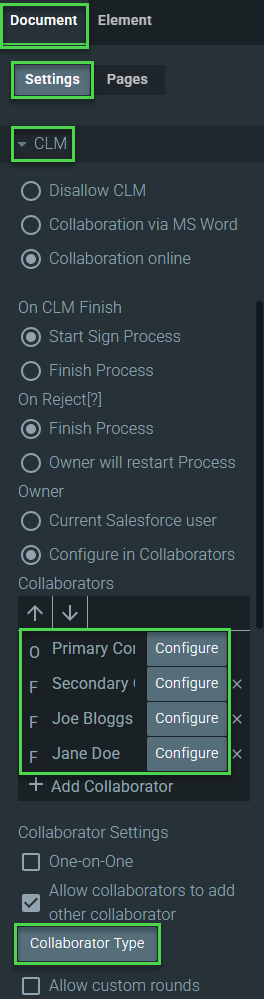
The right side of the user interface displays a list of configured collaborators. You can set their permissions by clicking the Collaborator Type button.
The Configure collaborators screen opens. The radio buttons select the level of permission for each collaborator.
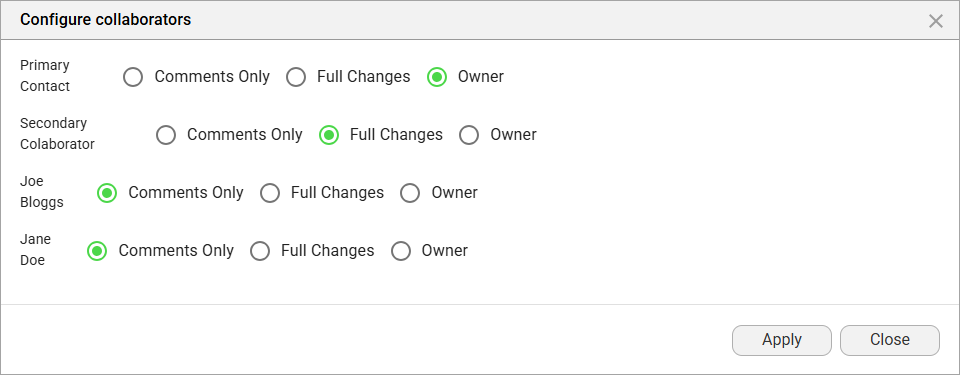
In this lesson, the permissions are as follows:
- The primary contact (CLM Director) is the document owner
- The secondary contact (CLM Consultant) can make full changes
- Joe Bloggs and Jane Doe can only add comments to the document
Let’s look at what happens in the interface at each level of collaboration.
The first round of collaboration does not begin with the document owner (CLM Director) but with the second collaborator. The document will be passed to the owner to make the final changes, and the other collaborators’ edits and comments will be approved or rejected only at the end of the collaboration process.
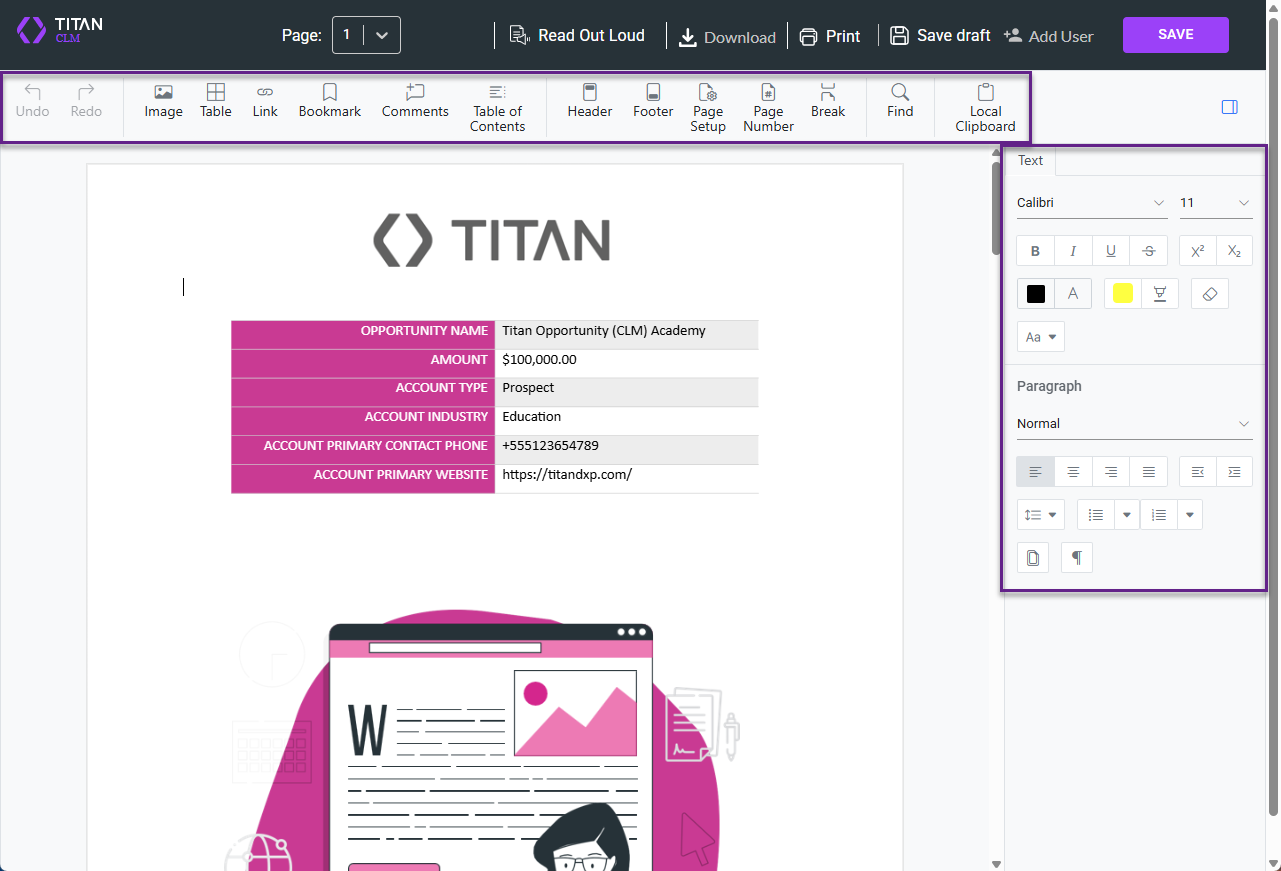
The second collaborator (CLM Consultant) can make full changes to the document using the interface's tools on the top and right-hand sides.
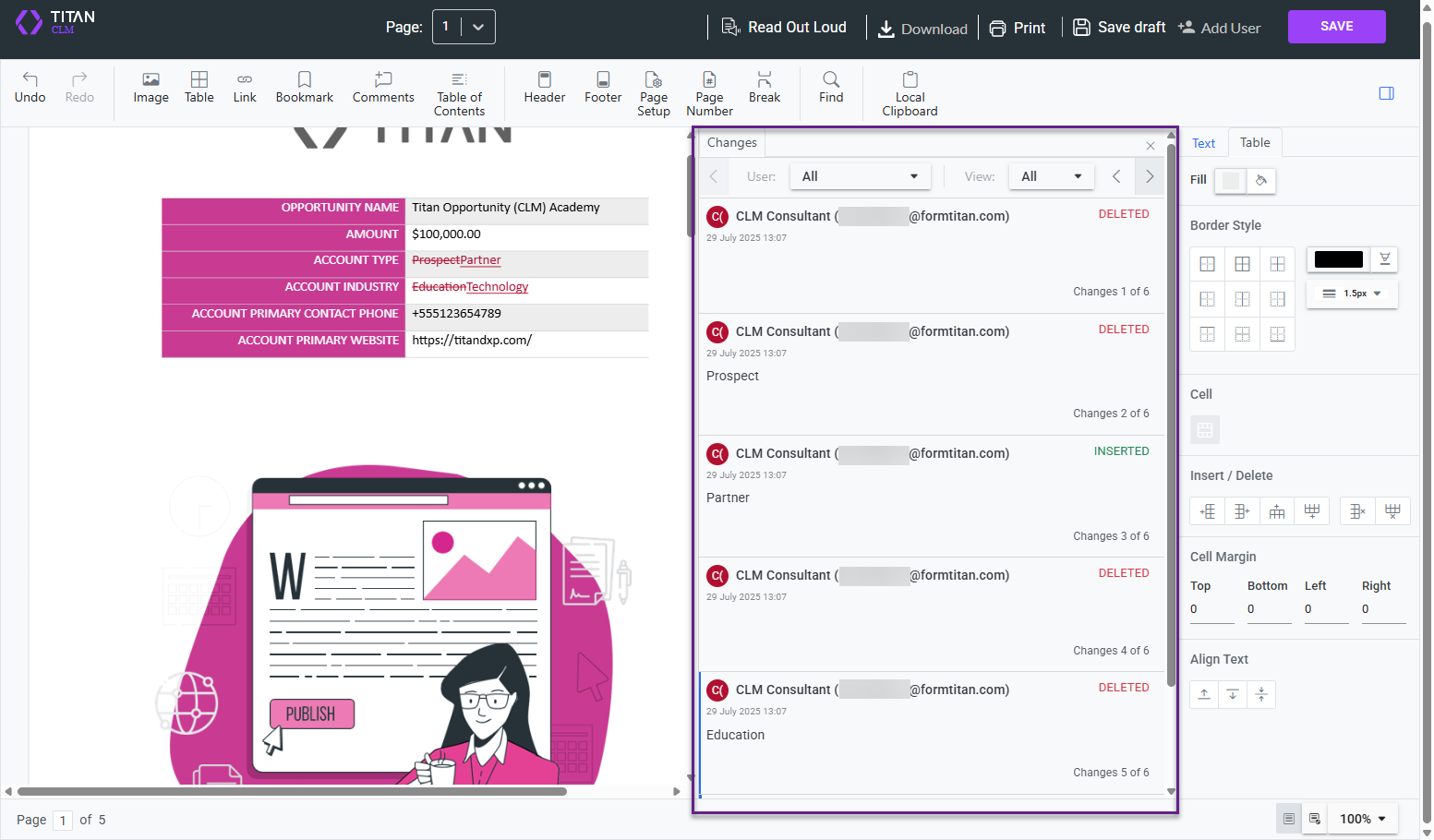
When this collaborator makes any changes, such as deleting or inserting text, that information is added to a tab on the right side of the document, using their name as an identifier. The collaborator can redline and make inline text edits, and when they click the Save button, the document is sent to the third collaborator, Joe Bloggs.
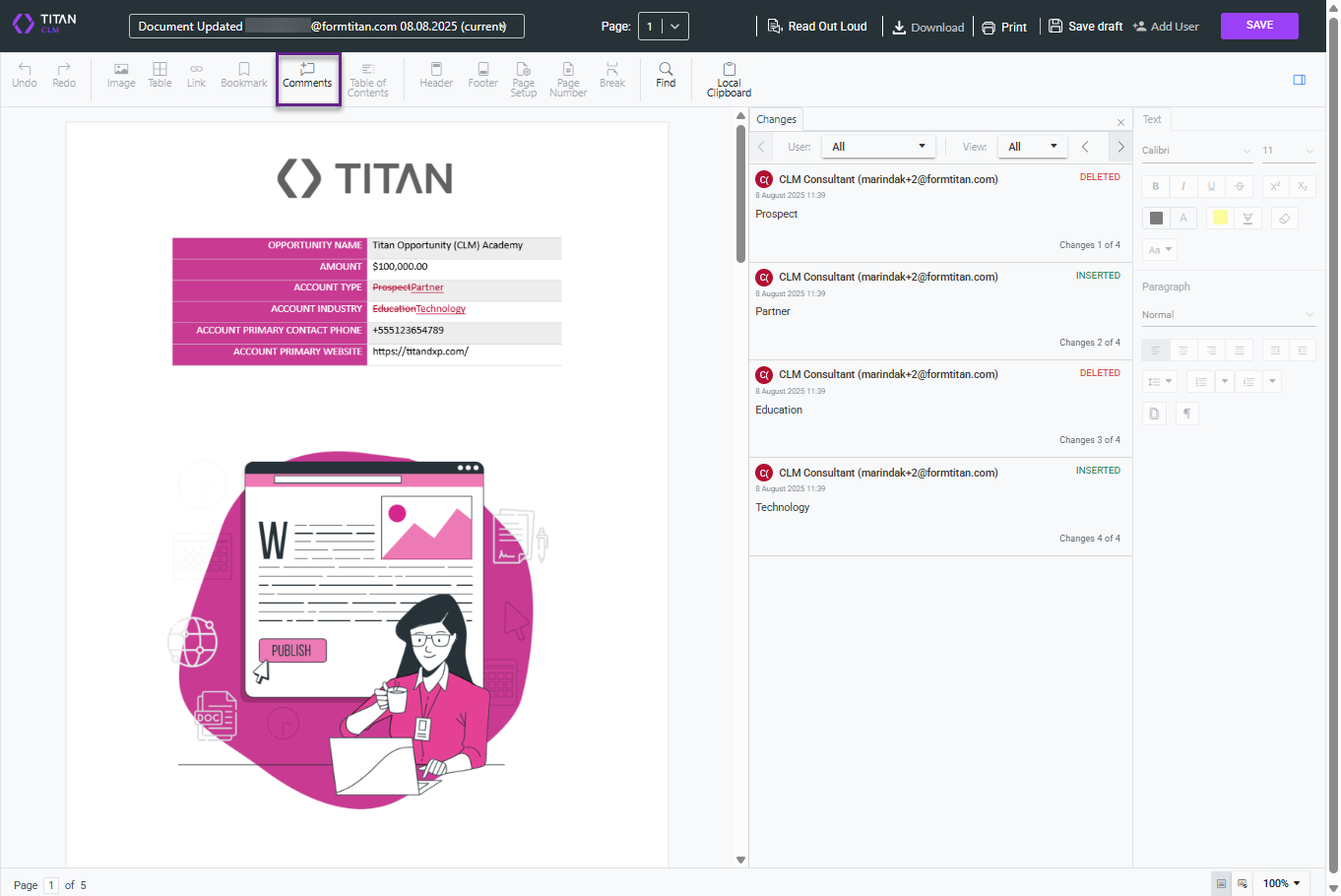
When the third collaborator (Joe Bloggs) opens the document, there is a subtle difference in the CLM tools available to him. Certain features are disabled, except the Comments option, as that is the level of permissions allocated to him.
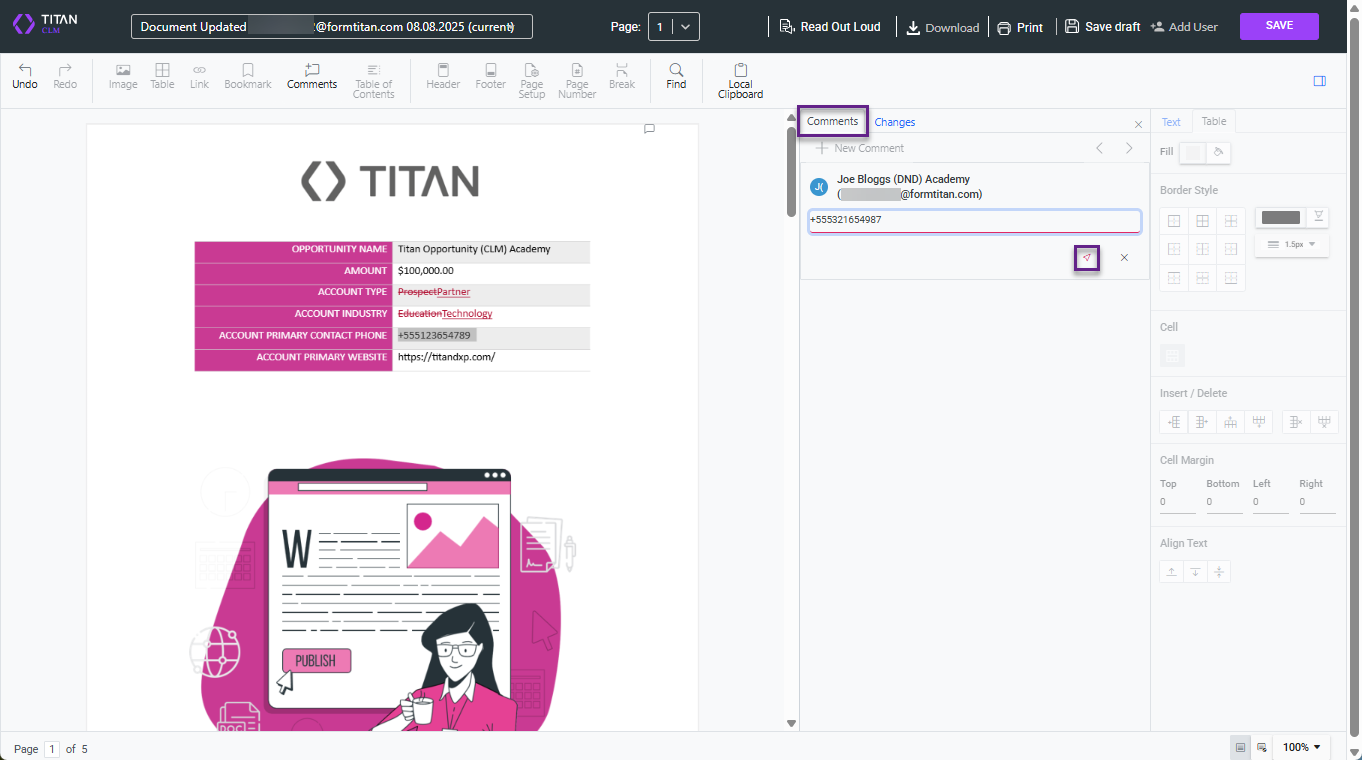
When the third collaborator clicks the Comments option, a new Comments tab is added next to the Changes tab. This tab tracks all the comments made using his name as identifier. When he clicks the Post icon, the comment is saved.
The collaborator then clicks the Save button at the top right of the document to send it to the fourth collaborator (Jane Doe) for her consideration.
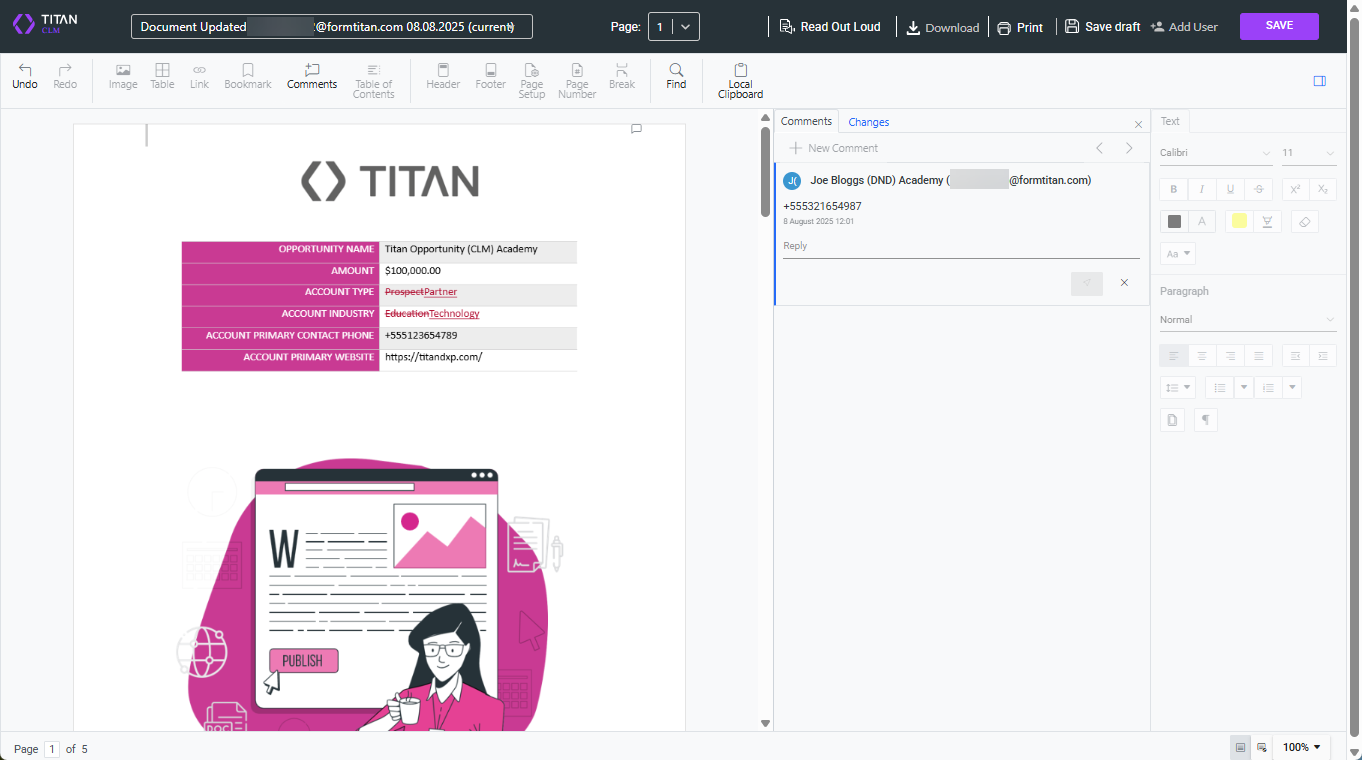
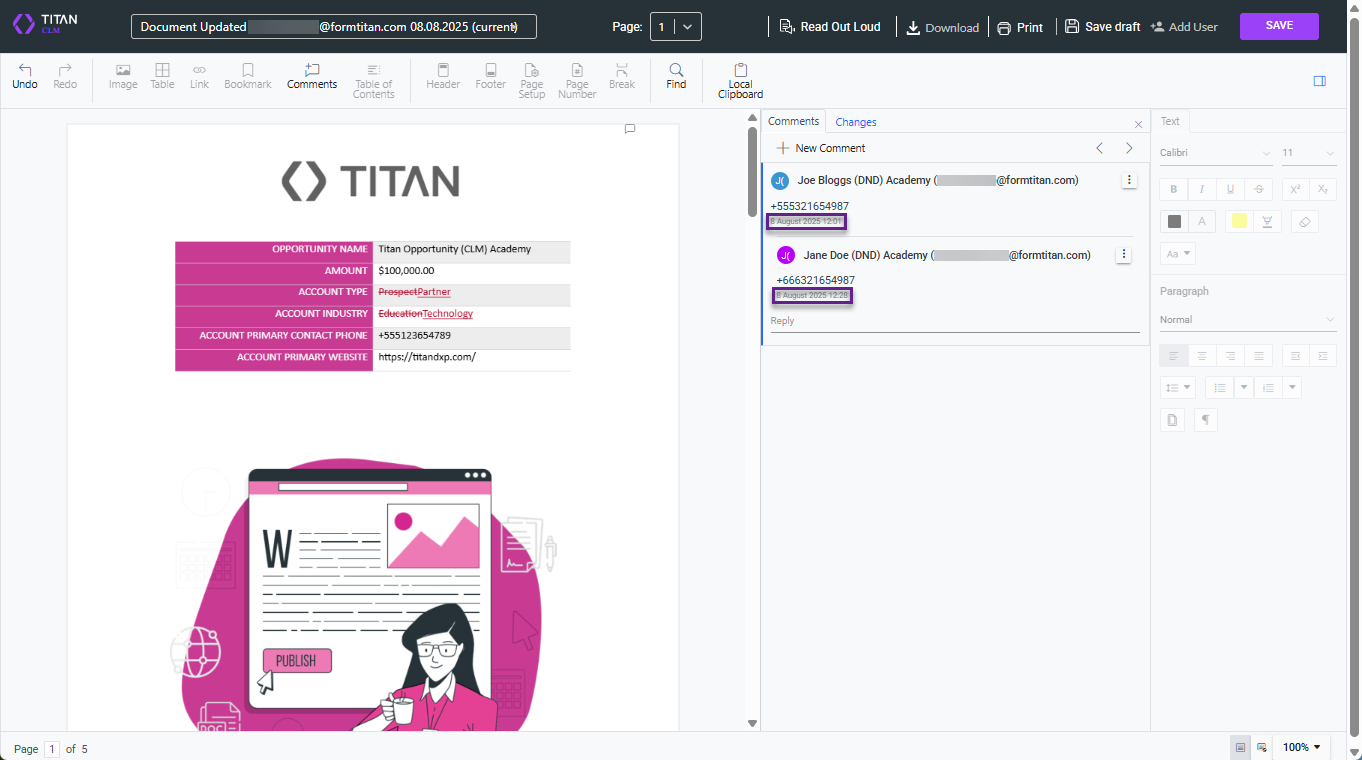
The fourth collaborator receives the document with the same commenting tool, with most of the features in the interface disabled. She can not only add comments but also respond to the comments the third collaborator made.
The comments are posted chronologically with timestamps and the full details of who made the comments.
When all the collaborators have added all their contributions, the last collaborator clicks the Send button to send the document to the owner (CLM Director).
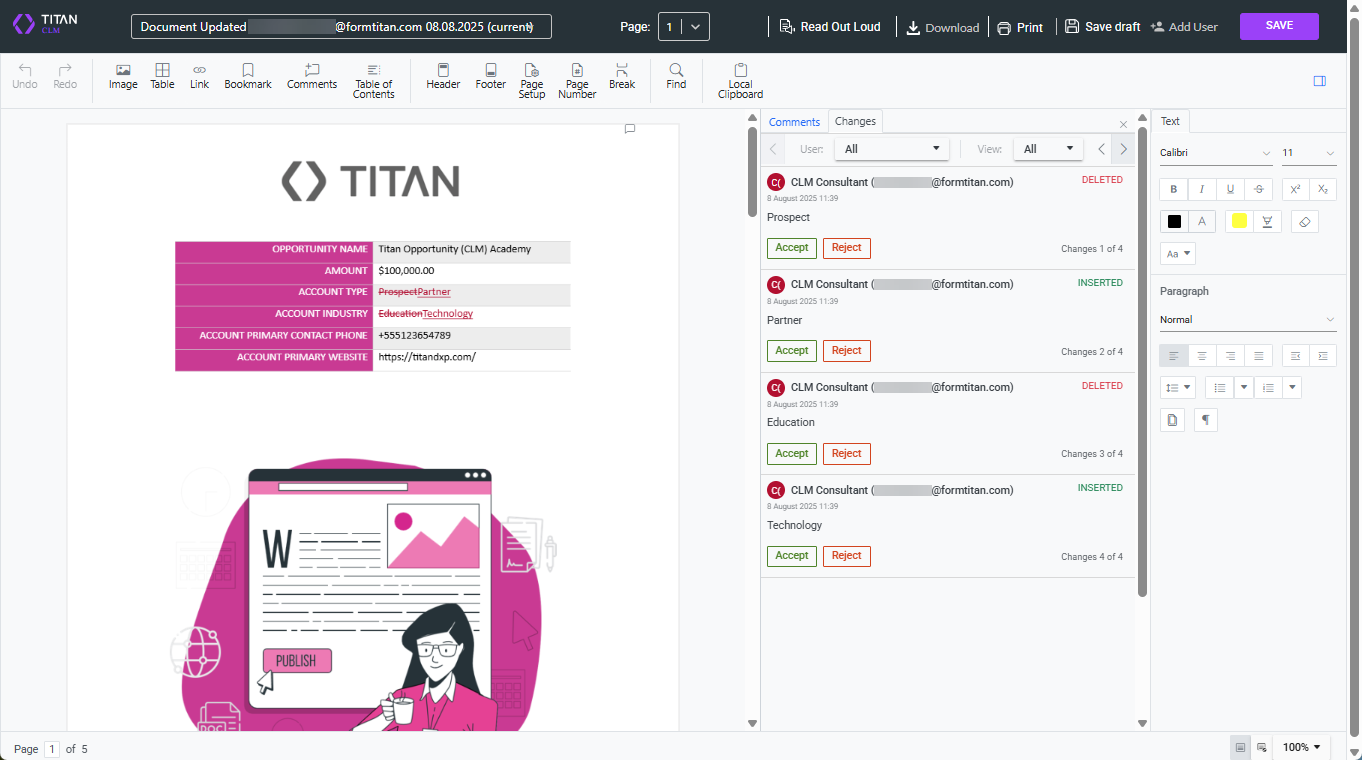
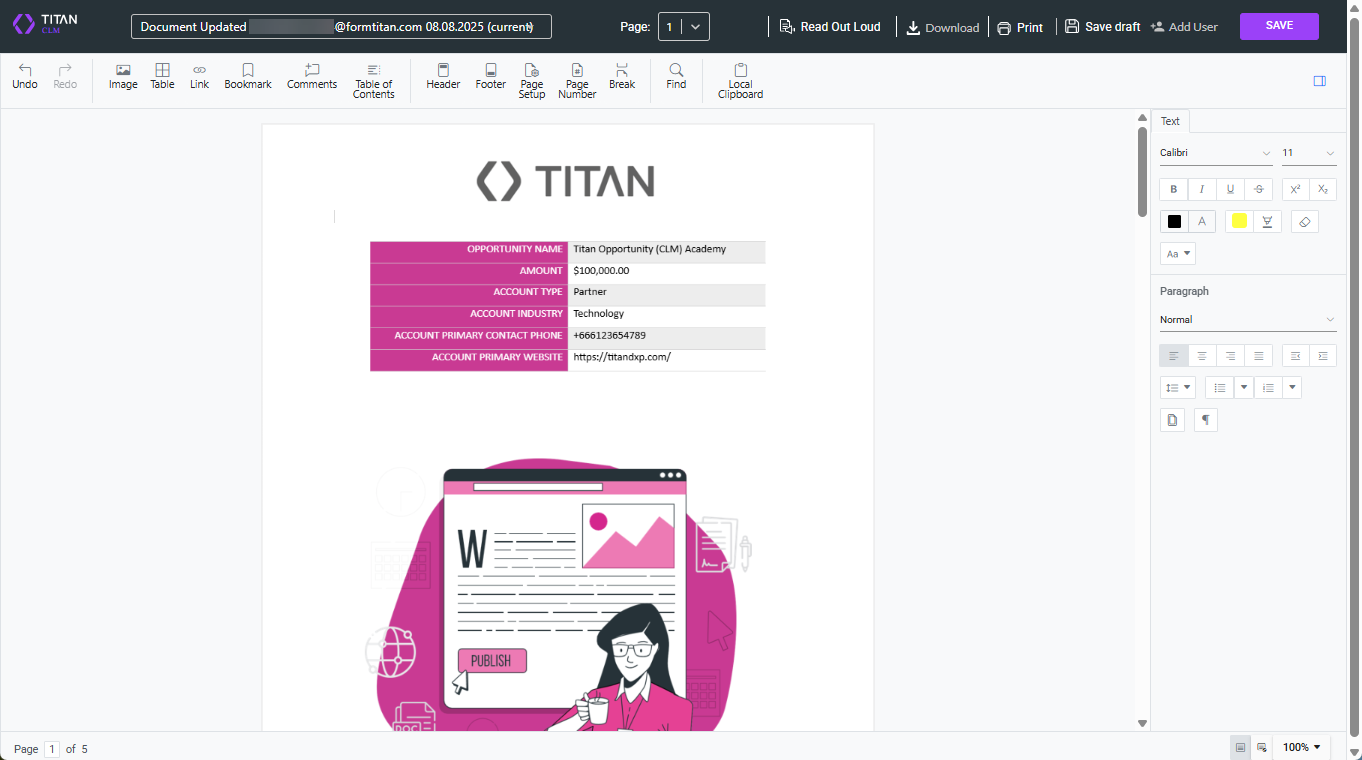
The owner has full editing permissions and can now accept or reject the changes and make final edits based on the comments. The final document displays all the changes that were accepted.
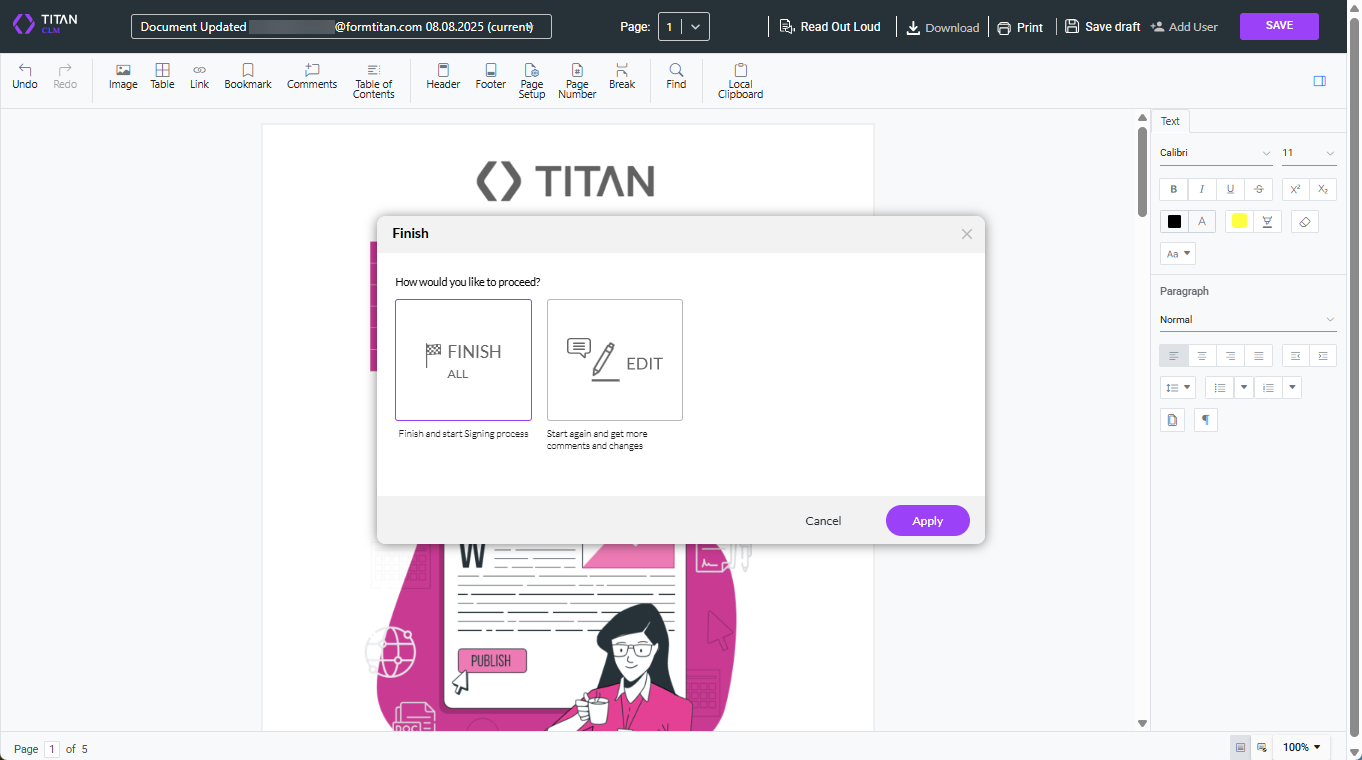
When they click the Save button, they can click the Finish button to finish the editing process and start the signing process, or click the Edit button to send it for further edits.
This lesson described the differences between comments-only and full change editing permissions.
A typical use case is where reviews must be passed through a central legal team for changes. CLM allows users to make direct edits, including red-line text edits and tracked changes.
Within the CLM tool, you can dictate the different levels of permissions.
The right side of the user interface displays a list of configured collaborators. You can set their permissions by clicking the Collaborator Type button.
The Configure collaborators screen opens. The radio buttons select the level of permission for each collaborator.
In this lesson, the permissions are as follows:
- The primary contact (CLM Director) is the document owner
- The secondary contact (CLM Consultant) can make full changes
- Joe Bloggs and Jane Doe can only add comments to the document
Let’s look at what happens in the interface at each level of collaboration.
The first round of collaboration does not begin with the document owner (CLM Director) but with the second collaborator. The document will be passed to the owner to make the final changes, and the other collaborators’ edits and comments will be approved or rejected only at the end of the collaboration process.
The second collaborator (CLM Consultant) can make full changes to the document using the interface's tools on the top and right-hand sides.
When this collaborator makes any changes, such as deleting or inserting text, that information is added to a tab on the right side of the document, using their name as an identifier. The collaborator can redline and make inline text edits, and when they click the Save button, the document is sent to the third collaborator, Joe Bloggs.
When the third collaborator (Joe Bloggs) opens the document, there is a subtle difference in the CLM tools available to him. Certain features are disabled, except the Comments option, as that is the level of permissions allocated to him.
When the third collaborator clicks the Comments option, a new Comments tab is added next to the Changes tab. This tab tracks all the comments made using his name as identifier. When he clicks the Post icon, the comment is saved.
The collaborator then clicks the Save button at the top right of the document to send it to the fourth collaborator (Jane Doe) for her consideration.
The fourth collaborator receives the document with the same commenting tool, with most of the features in the interface disabled. She can not only add comments but also respond to the comments the third collaborator made.
The comments are posted chronologically with timestamps and the full details of who made the comments.
When all the collaborators have added all their contributions, the last collaborator clicks the Send button to send the document to the owner (CLM Director).
The owner has full editing permissions and can now accept or reject the changes and make final edits based on the comments. The final document displays all the changes that were accepted.
When they click the Save button, they can click the Finish button to finish the editing process and start the signing process, or click the Edit button to send it for further edits.
This lesson described the differences between comments-only and full change editing permissions.