One on One (7 min)
Completion requirements
01 Getting Started
The CLM tool offers one-on-one capabilities, allowing direct individual collaboration on contracts rather than broad team-wide workflows. This means that while a wider team can work on the same project, the collaboration process would be between the collaborator and the document owner before moving on to the next collaborator.
All changes made by the first collaborator are redlined and then passed back to the owner, who will reject or accept the changes. This process can repeat until both parties are satisfied with the document. When the document is sent to the second collaborator, they will not see any edits made by the first collaborator. Each collaboration round is isolated, so each change is approved rather than tracked.
All changes made by the first collaborator are redlined and then passed back to the owner, who will reject or accept the changes. This process can repeat until both parties are satisfied with the document. When the document is sent to the second collaborator, they will not see any edits made by the first collaborator. Each collaboration round is isolated, so each change is approved rather than tracked.
02 Enable One on One
1. Navigate to the Document Settings Menu and expand the CLM drop-down.
2. Enable the One-on-One feature.
Note: Ensure that Allow Collaborators to Add Other Collaborators and Allow Custom Rounds are deselected.
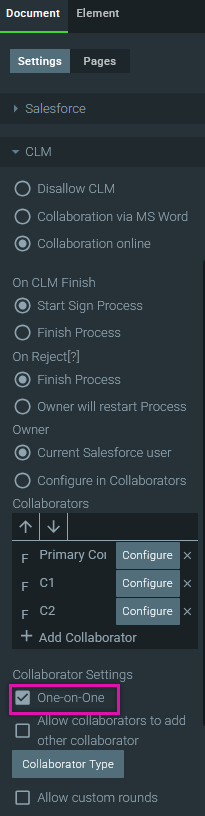
2. Enable the One-on-One feature.
Note: Ensure that Allow Collaborators to Add Other Collaborators and Allow Custom Rounds are deselected.
03 See It In Action
From Salesforce, you can initiate the CLM process.
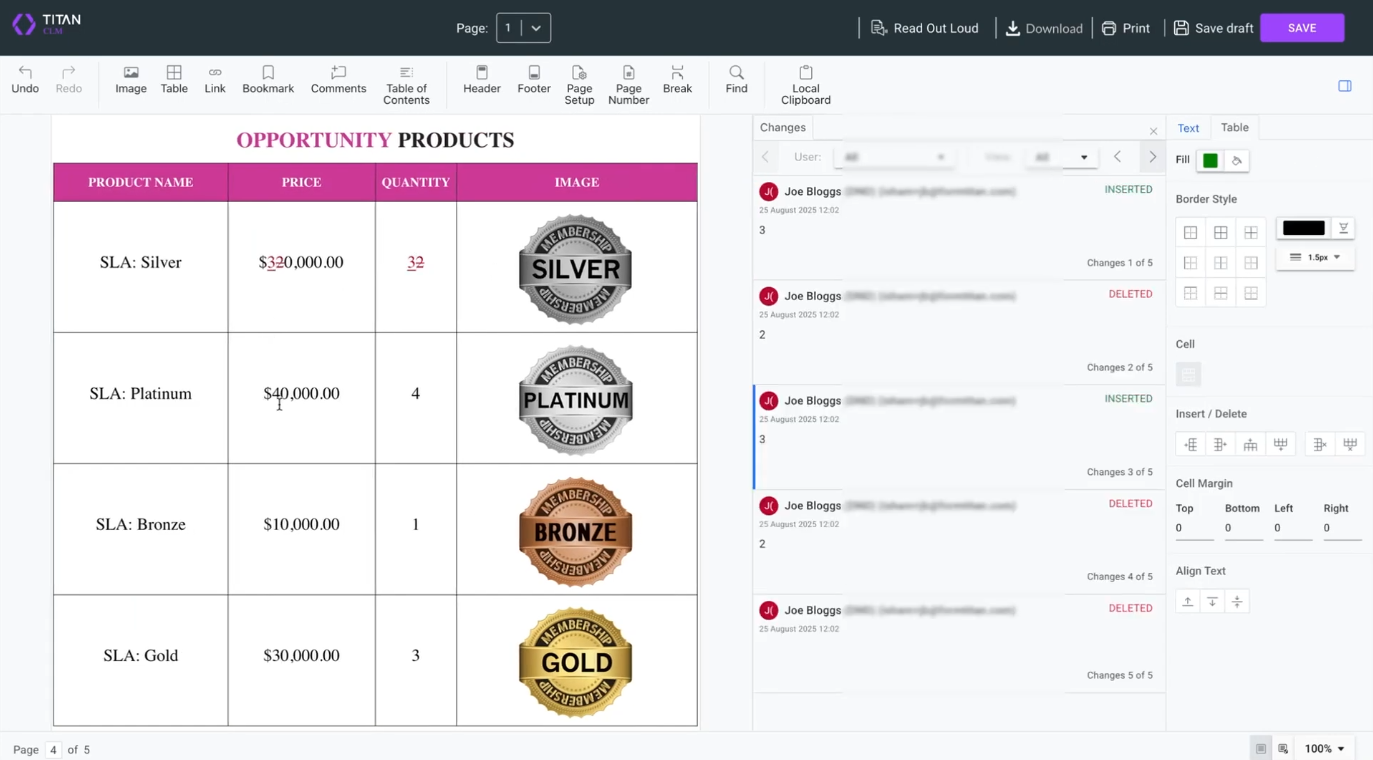
Collaborator 1 edits the document. Once it is saved, it is returned to the document owner, who will approve or reject the changes.
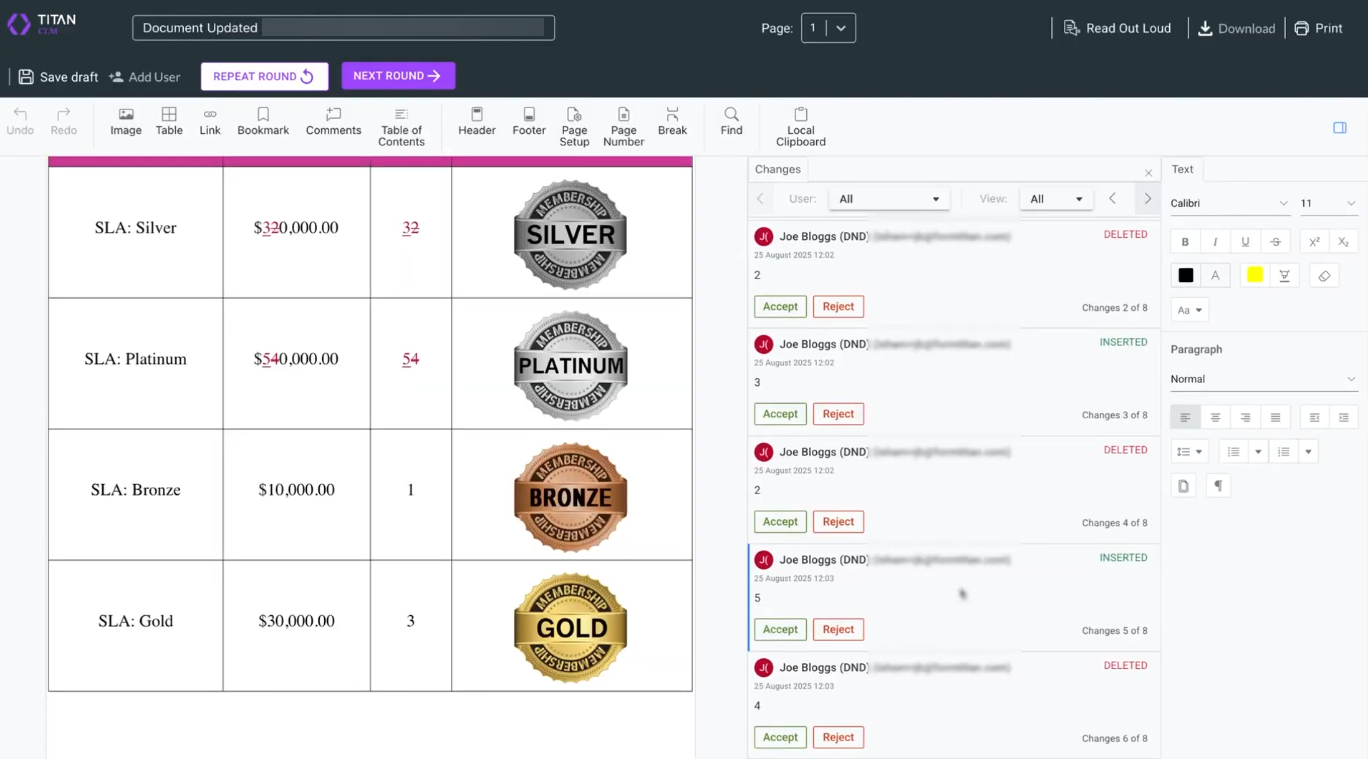
After completing this process, the document owner can accept or reject the changes. They can choose to repeat another collaboration round with Collaborator 1 or send the document to Collaborator 2.
Collaborator 2 will not see any redline changes as edits, but as an updated document. Any changes Collaborator 2 makes and saves will be sent to the document owner for approval or rejection.
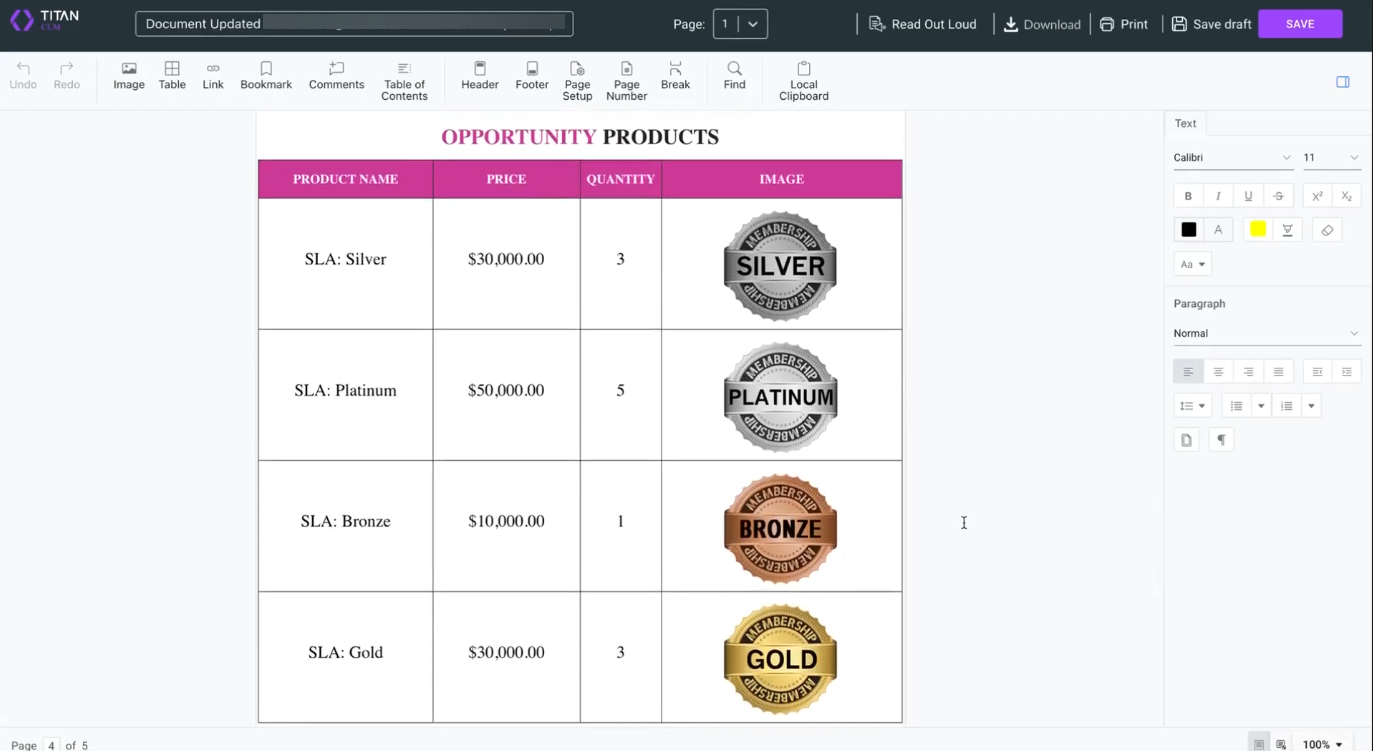
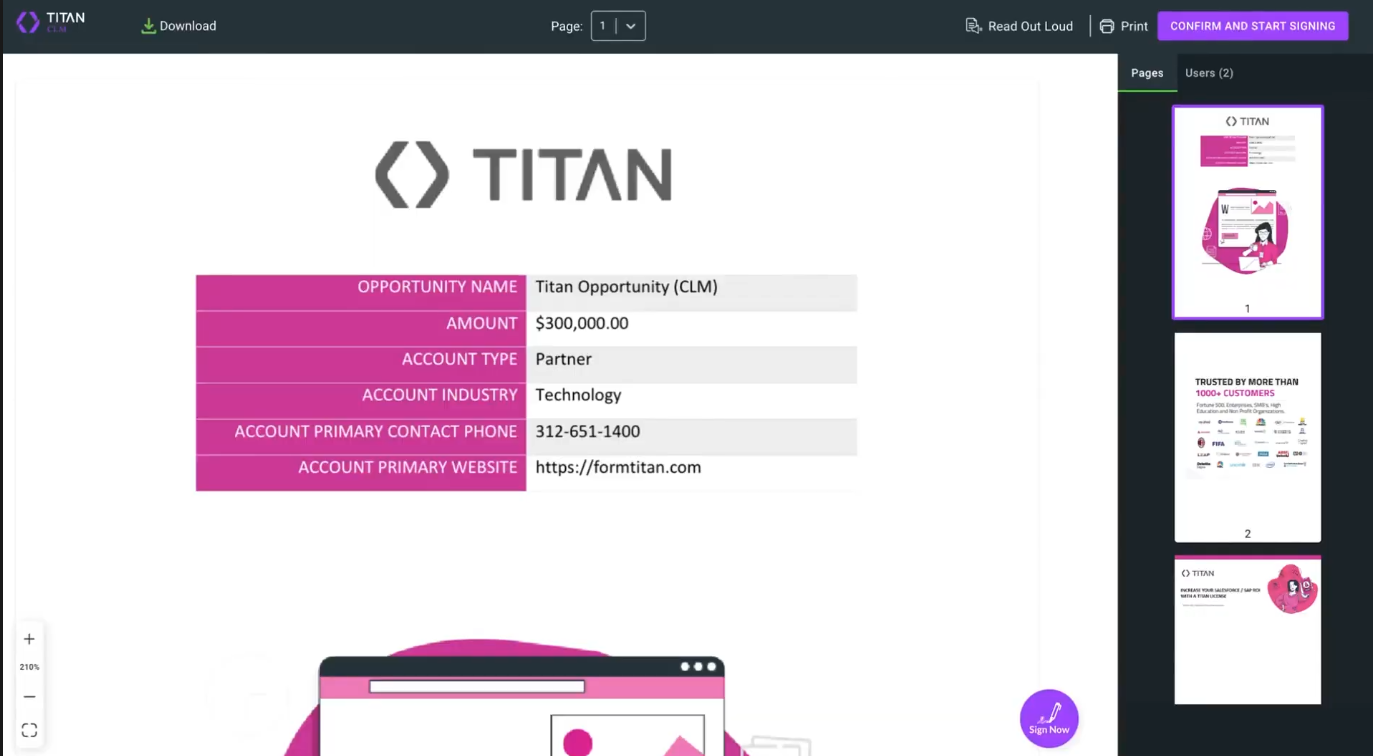
Once all rounds are completed with each collaborator, the final document with all the changes embedded is sent to the owner. The owner can confirm and start the signing process.
Collaborator 1 edits the document. Once it is saved, it is returned to the document owner, who will approve or reject the changes.
After completing this process, the document owner can accept or reject the changes. They can choose to repeat another collaboration round with Collaborator 1 or send the document to Collaborator 2.
Collaborator 2 will not see any redline changes as edits, but as an updated document. Any changes Collaborator 2 makes and saves will be sent to the document owner for approval or rejection.
Once all rounds are completed with each collaborator, the final document with all the changes embedded is sent to the owner. The owner can confirm and start the signing process.