Completing the CLM Process (6 min)
Completion requirements
01 Getting Started
Once a document collaboration process is complete in Titan CLM, the document owner must decide how the workflow should end.
At this stage, you can either:
At this stage, you can either:
- Finish the CLM process without collecting signatures
- Trigger the signing process to finalize the document with eSignatures
02 CLM Finish Options
When configuring the CLM workflow, you will see the On CLM Finish setting on the right side of the builder.
Two options are available:
Important: Signing is not required in a CLM workflow. It is simply an additional step that can be triggered if signatures are needed.
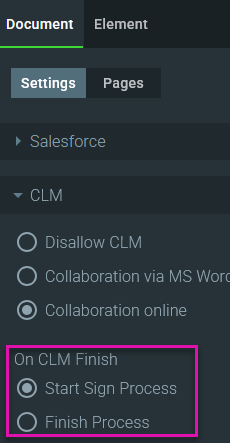
Two options are available:
- Start Sign Process
- Finish Process
Important: Signing is not required in a CLM workflow. It is simply an additional step that can be triggered if signatures are needed.
03 Option 1: Finish the CLM Process
If Finish Process is selected, the workflow ends after collaboration.
What happens
1. The document returns to the document owner.
2. The owner selects Save.
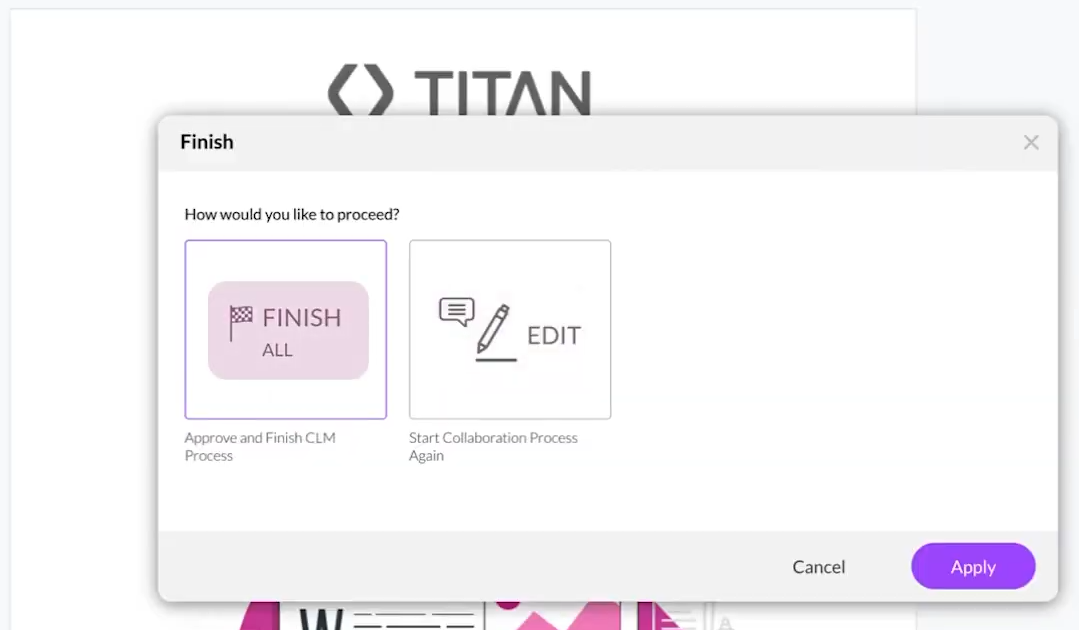
3. Two options appear:
At this point, the document is finalized without initiating a signing workflow
Salesforce Result
When viewing the record in Salesforce:
What happens
1. The document returns to the document owner.
2. The owner selects Save.
3. Two options appear:
- Restart the collaboration process
- Approve and finish the CLM process
At this point, the document is finalized without initiating a signing workflow
Salesforce Result
When viewing the record in Salesforce:
- The document is uploaded to Salesforce Files
- The document contains no signatures
- The CLM process is considered complete
04 Option 2: Start the Signing Process
If Start Sign Process is selected, the CLM process transitions directly into the signing stage.
What happens
1. The document returns to the document owner.
2. The owner selects Save.
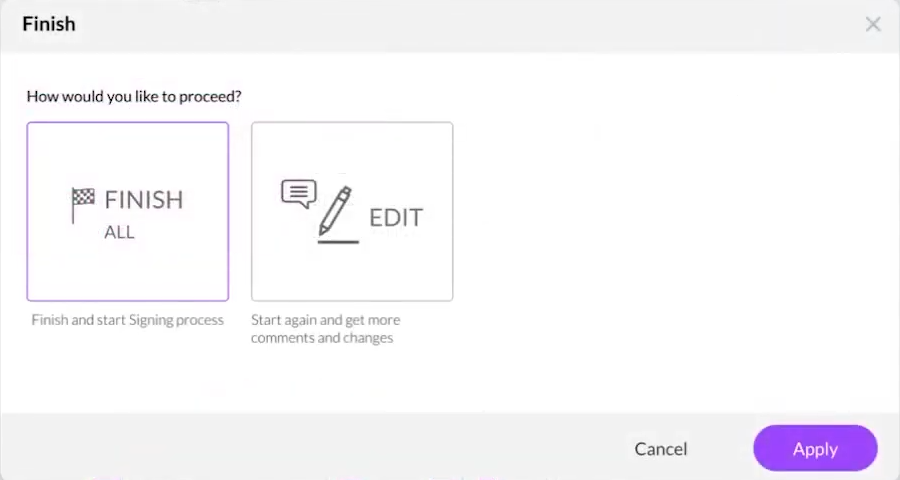
3. The owner chooses Finish and Start Signing Process
4. Selecting Apply opens the signing preparation screen.
From here, the owner can:
What happens
1. The document returns to the document owner.
2. The owner selects Save.
3. The owner chooses Finish and Start Signing Process
4. Selecting Apply opens the signing preparation screen.
From here, the owner can:
- Review the document
- Adjust signature elements if needed
- Confirm the signing workflow
05 Adjusting Signature Elements
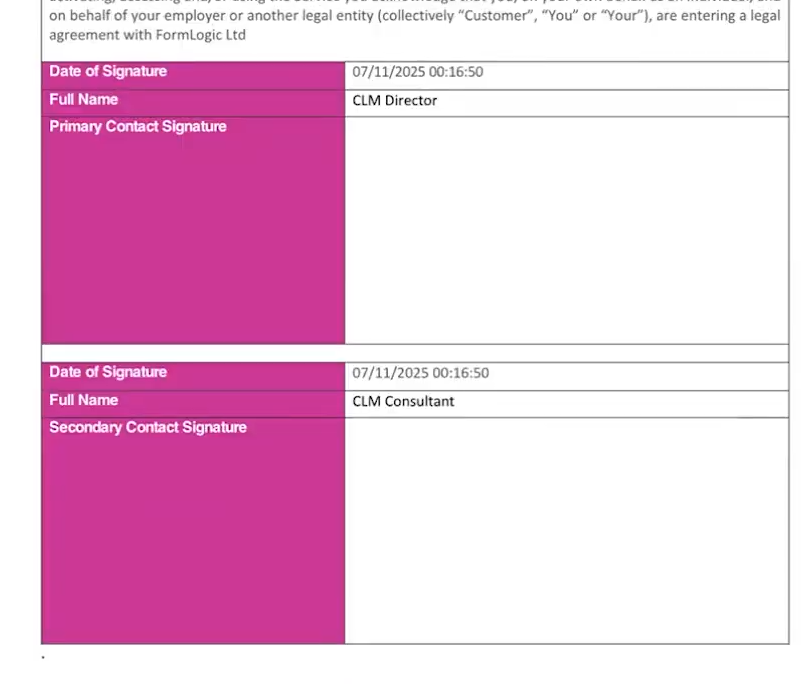
Before confirming the signing process, the document owner can adjust signature fields.
For example:
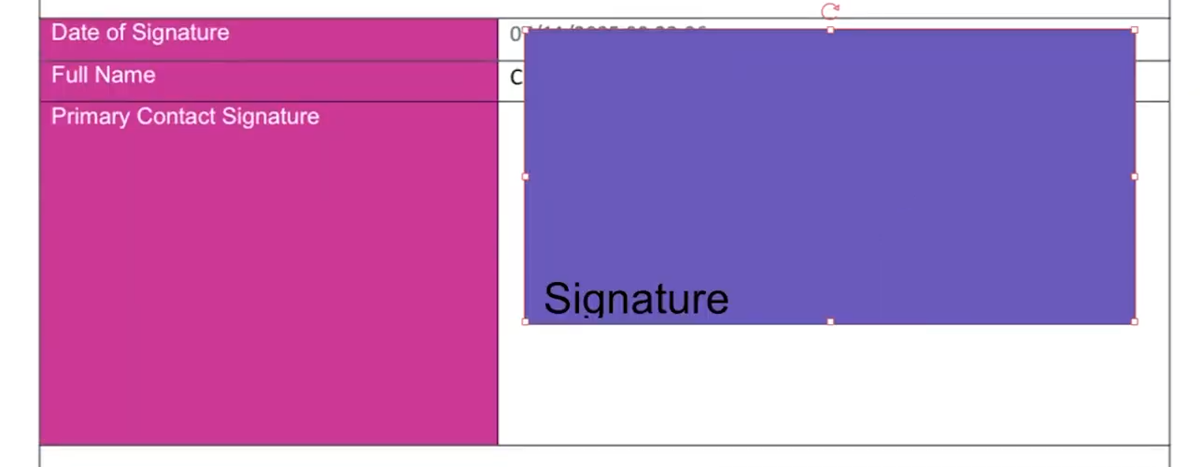
For example:
- Aligning signature boxes
- Moving fields that appear slightly out of place
- Adjusting placement for a cleaner signing experience
06 Signer Email Notification
When the signing process begins:
1. The first signer automatically receives an email invitation to sign the document.
2. The email contains a secure signing link.
However, there is an important behavior to understand.
If the document owner adjusts signature elements after the email is sent, the document changes.
When this occurs:
1. The first signer automatically receives an email invitation to sign the document.
2. The email contains a secure signing link.
However, there is an important behavior to understand.
If the document owner adjusts signature elements after the email is sent, the document changes.
When this occurs:
- The original signing link becomes invalid
- A new signing email is automatically generated
- Signers must use the updated email link
07 Completing the Signing Process
Once the signer accesses the updated link:
1. The signer reviews the document.
2. They complete the required signature fields.
3. They select Apply and Finish.
The document is then finalized with all required signatures.
1. The signer reviews the document.
2. They complete the required signature fields.
3. They select Apply and Finish.
The document is then finalized with all required signatures.
08 Final Result in Salesforce
After signing is complete, the finalized document appears in Salesforce.
The record will include:
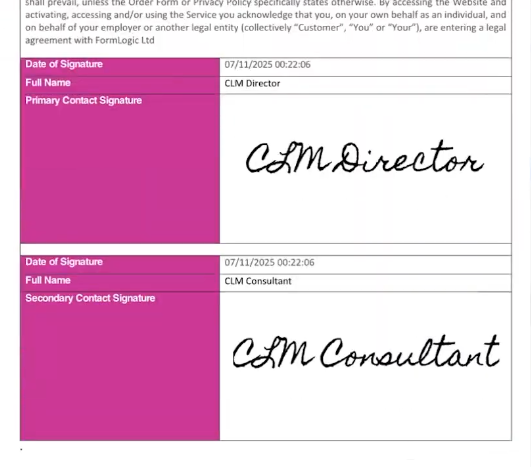
The record will include:
- The fully signed document
- A Titan DocSign tracking log
- Signer activity
- Signature timestamps
- Document completion status
09 Summary
- Signing is optional in Titan CLM workflows.
- You can finish the CLM process without triggering signatures.
- If signing is enabled, the process transitions directly into the signing stage.
- Adjusting signature elements after a signing email is sent will invalidate the previous link and generate a new one.
- All finalized documents and signature logs are stored in Salesforce.