Overview (12 min)
01 Getting Started
CLM, or Contract Lifecycle Management, manages contracts through every stage of their lifecycle–from initiation to drafting, negotiation, approval, and execution. Titan’s integration ensures a 360-degree view of the contract lifecycle, enabling multiple parties to collaborate on documents in real time. It is deeply integrated with Salesforce, allowing users to manage, review, and track every change made to agreements within the CRM.
Through our document generation capabilities, users can generate contracts from templates using Salesforce data.
Titan CLM automates the contract lifecycle by setting up workflows that direct contracts to the appropriate reviewers and approvers. Users can also redline, comment on, and edit documents, thus streamlining the collaboration process. Users can also configure automated email notifications for approvals, ensuring that contracts move smoothly through each stage without manual interventions.
02 Demo of Prebuilt Project
In this project, we have the Titan Opportunity (CLM) Academy record with some of the following data:
- The products and contact roles linked to the record.
- The opportunity details.
- Two collaborators.
This data will be pushed to a dynamic document in Titan CLM.
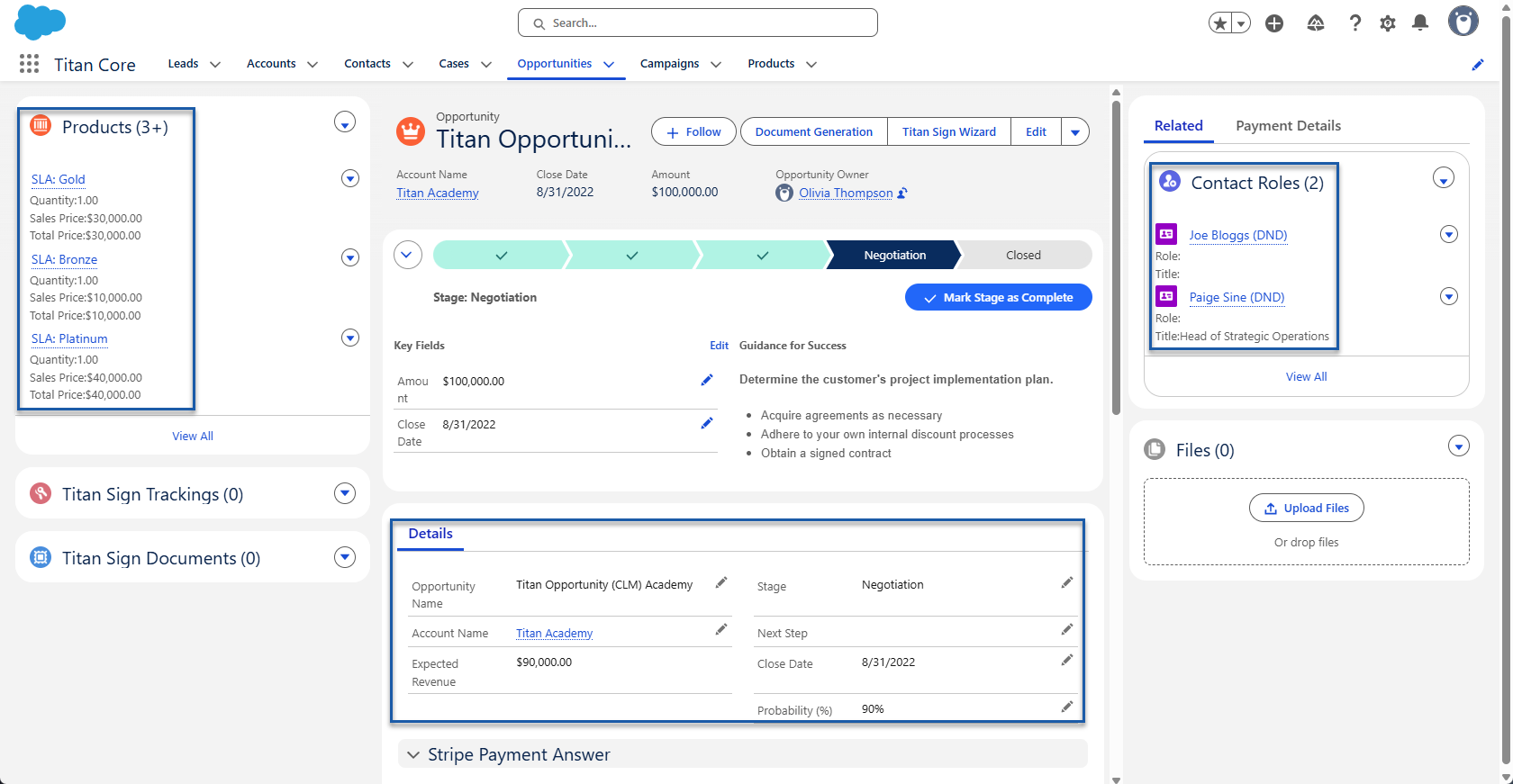
The two collaborators are as follows:
- Primary Contact: CLM Academy Director
- Secondary Contact: CLM Academy Consultant
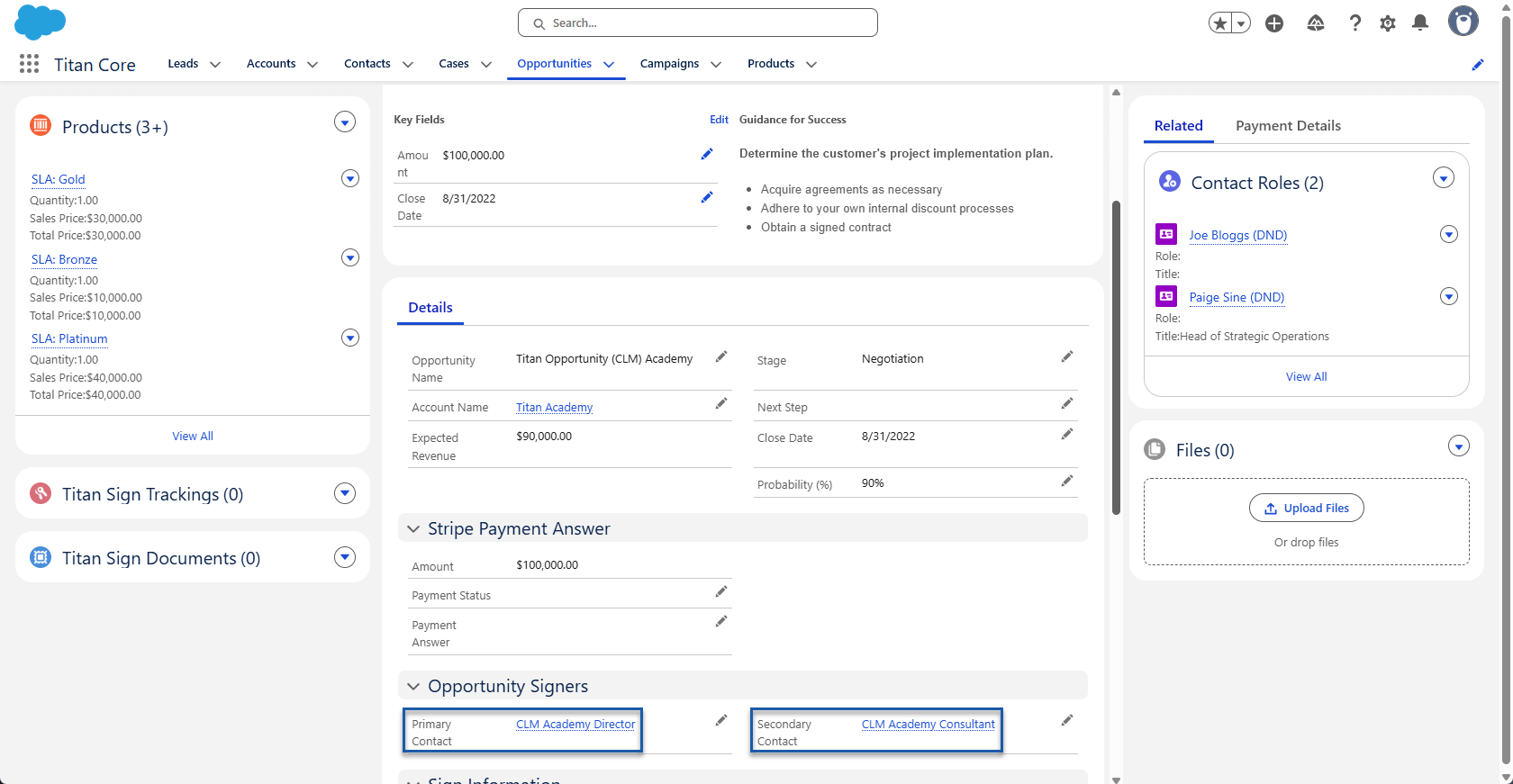
The CLM process will be executed from the Opportunity by clicking the Document Generation button on the record.

Clicking the Sign icon next to the applicable document sends an email to the first collaborator.
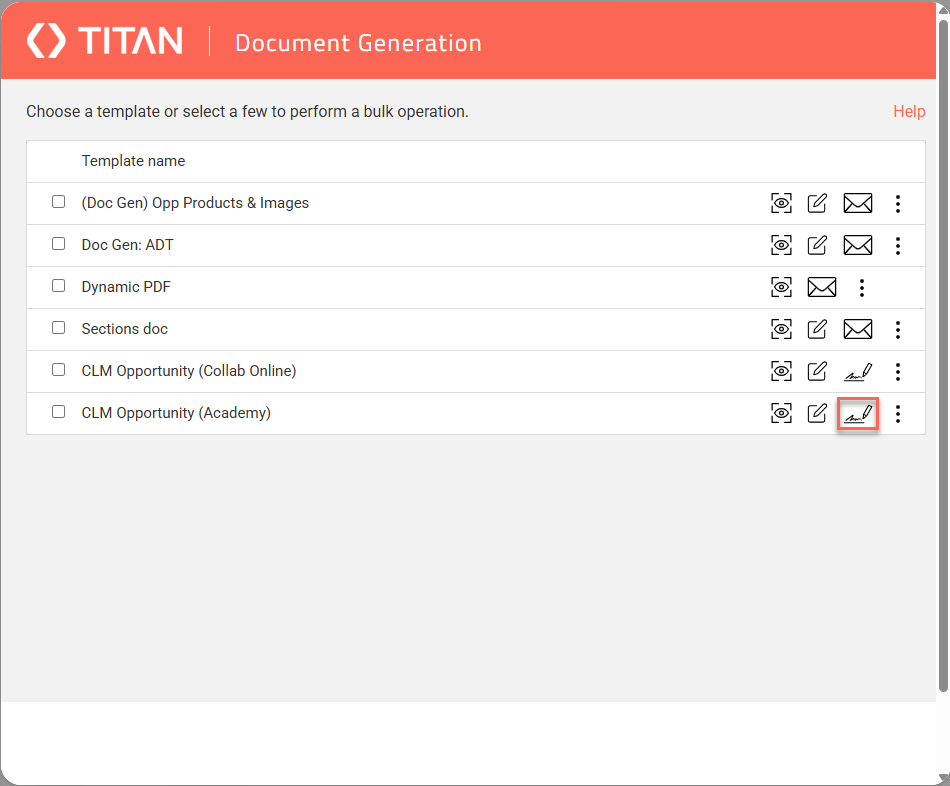
The email contains a URL to the document.
When the collaborator clicks the link, the CLM interface opens. The collaborator can edit the document using the top and right-hand side of the interface.
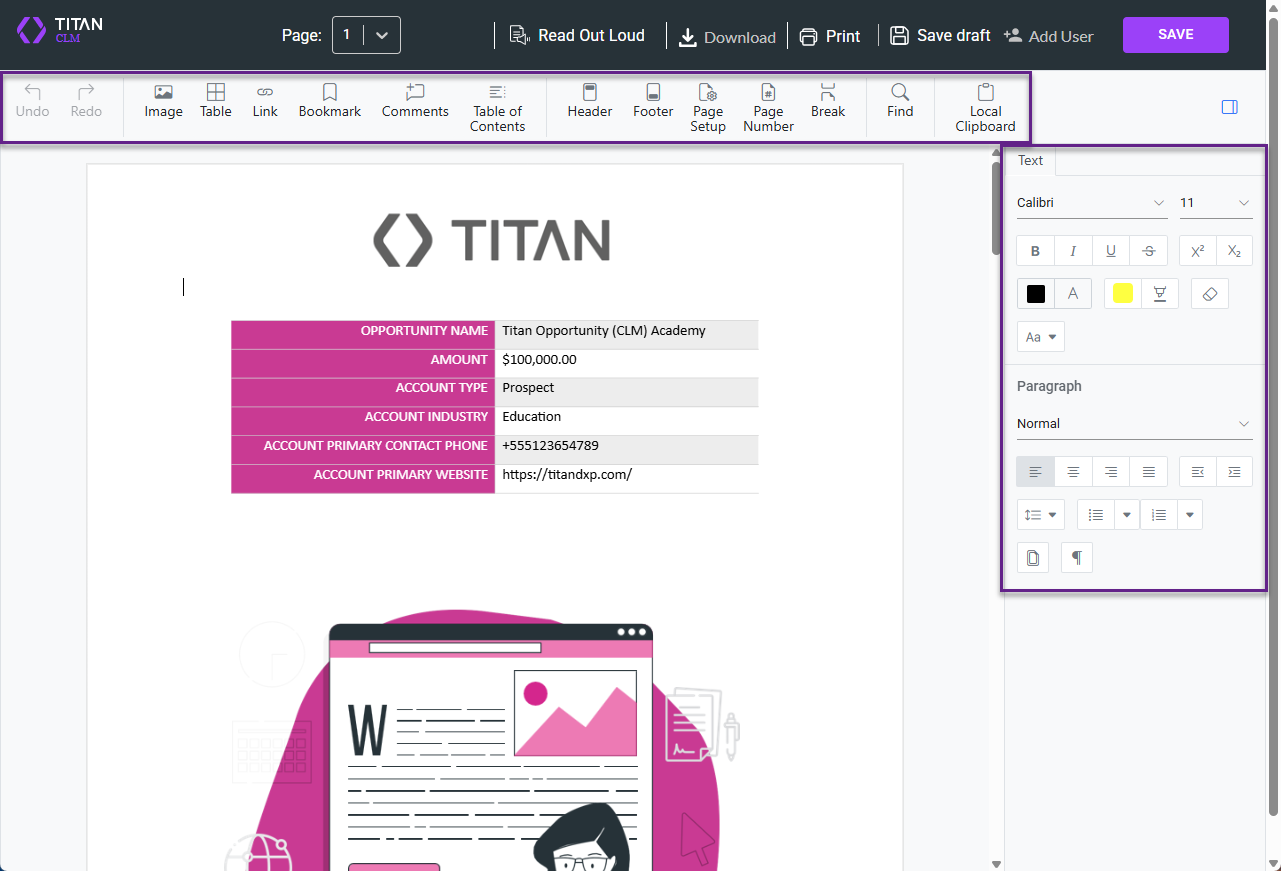
The collaborator can add comments, insert images or tables, or highlight and edit text.
The document displays the dynamic data from Salesforce.
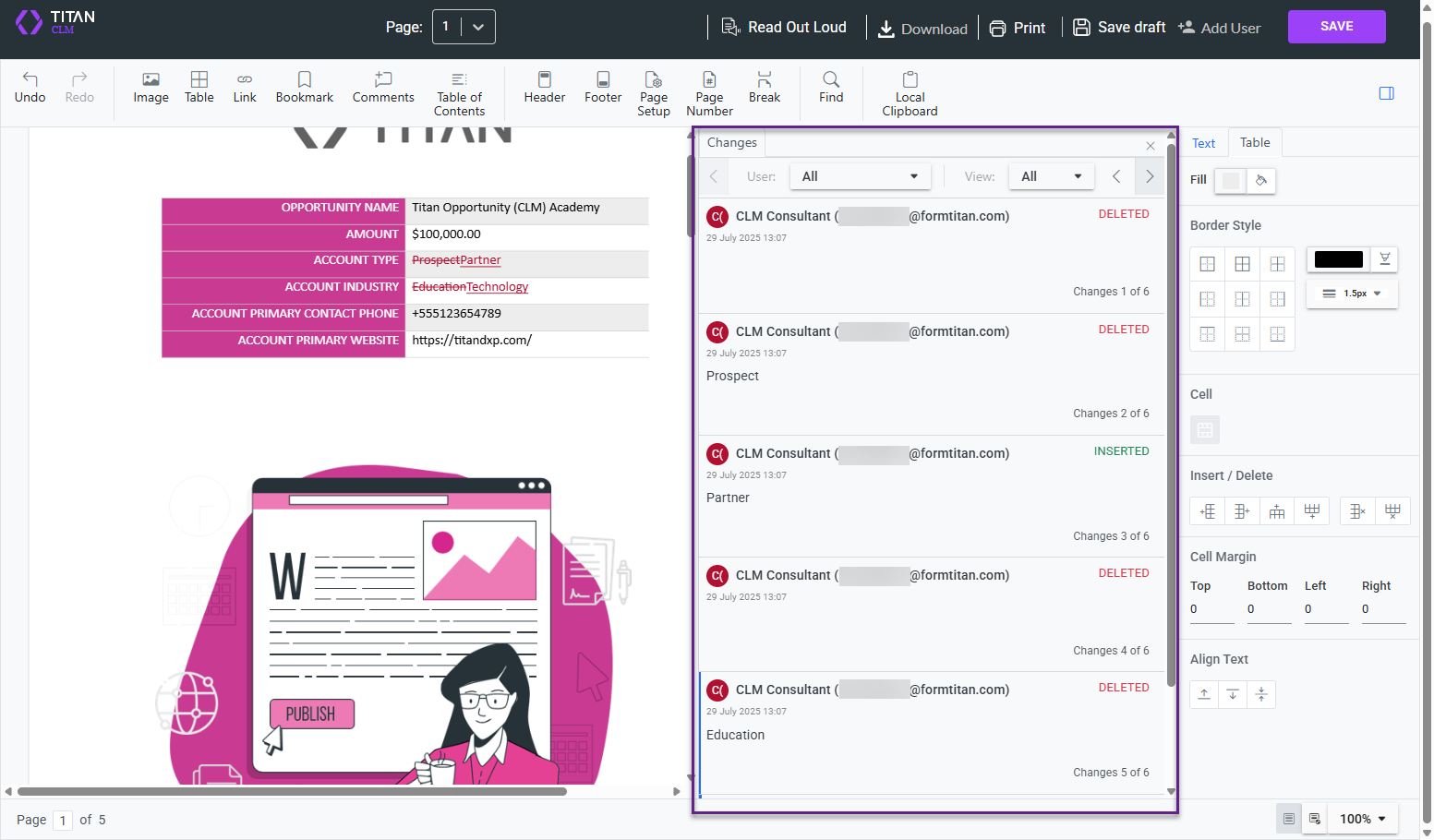
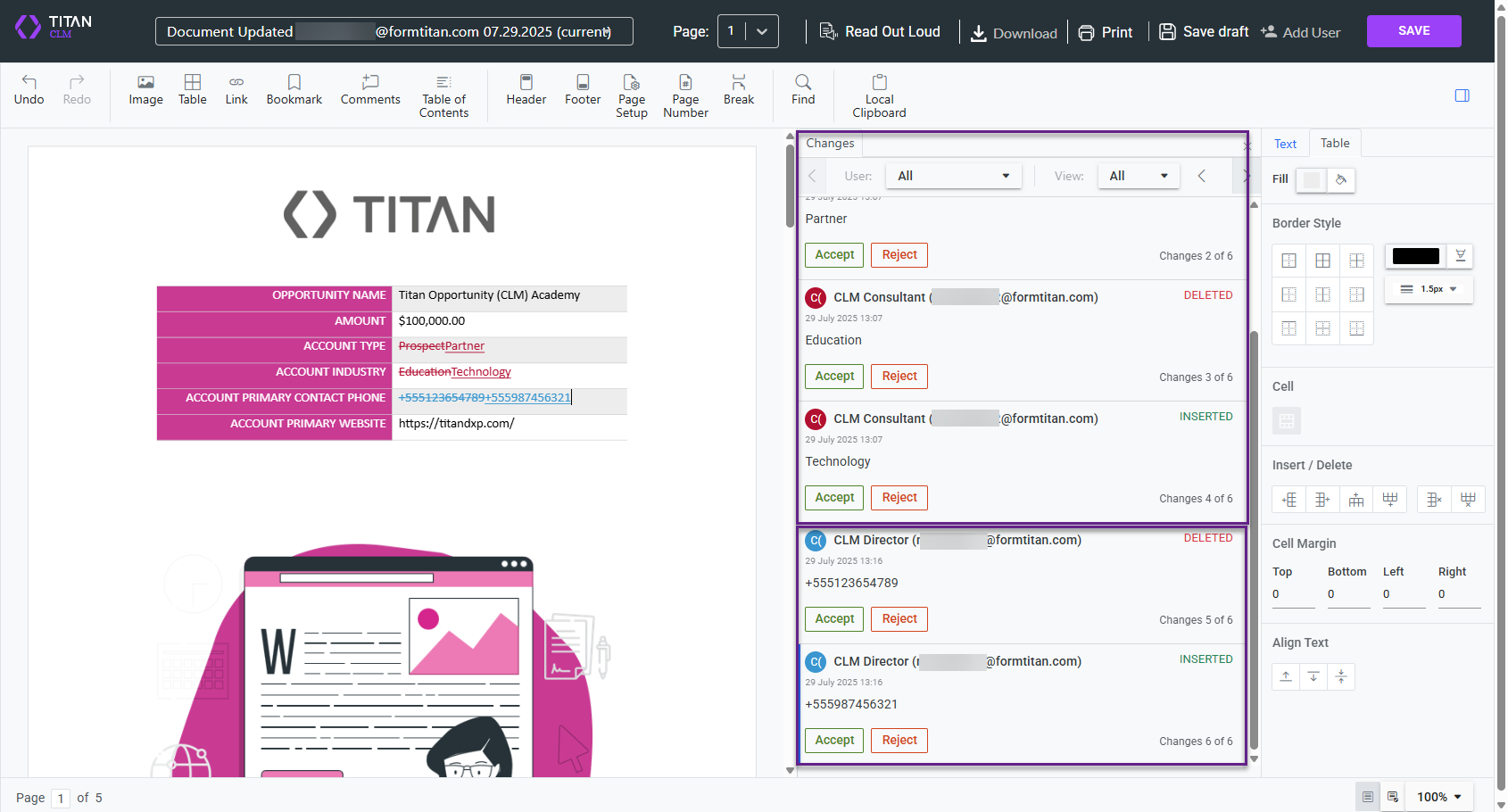
When the collaborator makes any changes, such as deleting or inserting text, that information is added to a tab on the right side of the document, using their name as an identifier.
When the first collaborator clicks the Save button, an email is sent to the next collaborator. In this example, the second collaborator is also the document's owner. In this role, they can decide to accept or reject the changes that the first collaborator made.
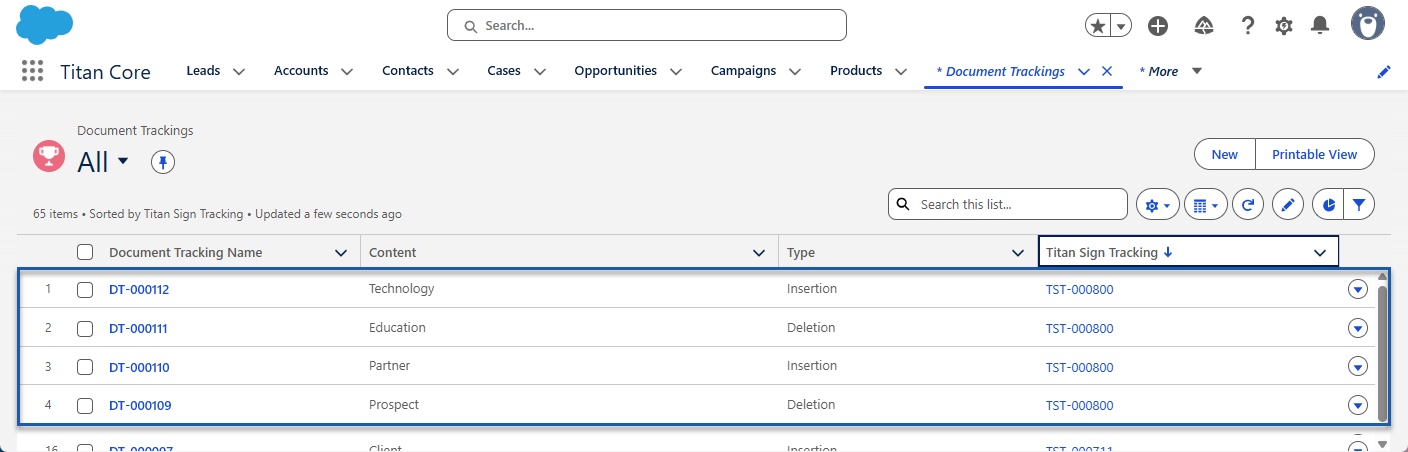
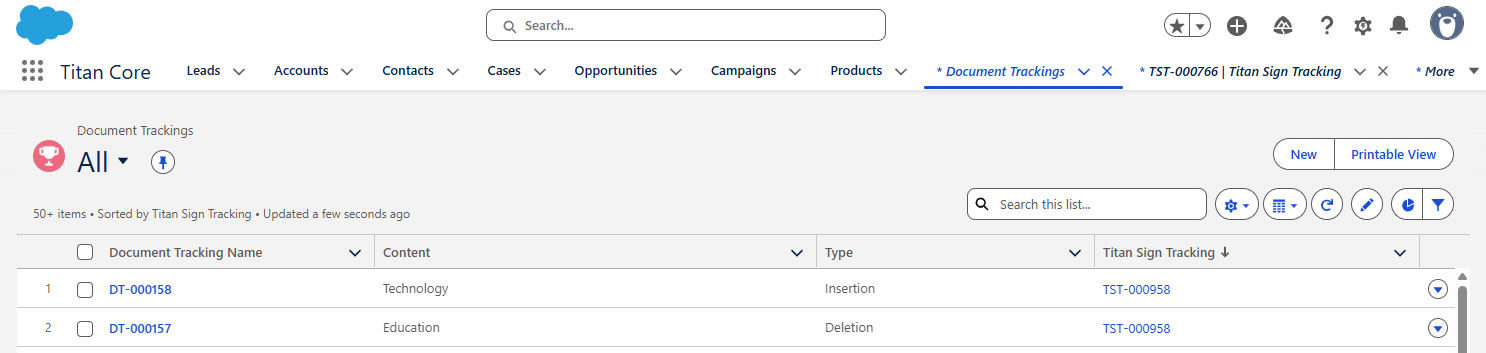
Back in Salesforce, each change can be seen using the Document Tracking object in real time. This shows the Document Tracking Name (a number starting with DT), the changed content, the type of change, and the Titan Sign Tracking number (beginning with TST).
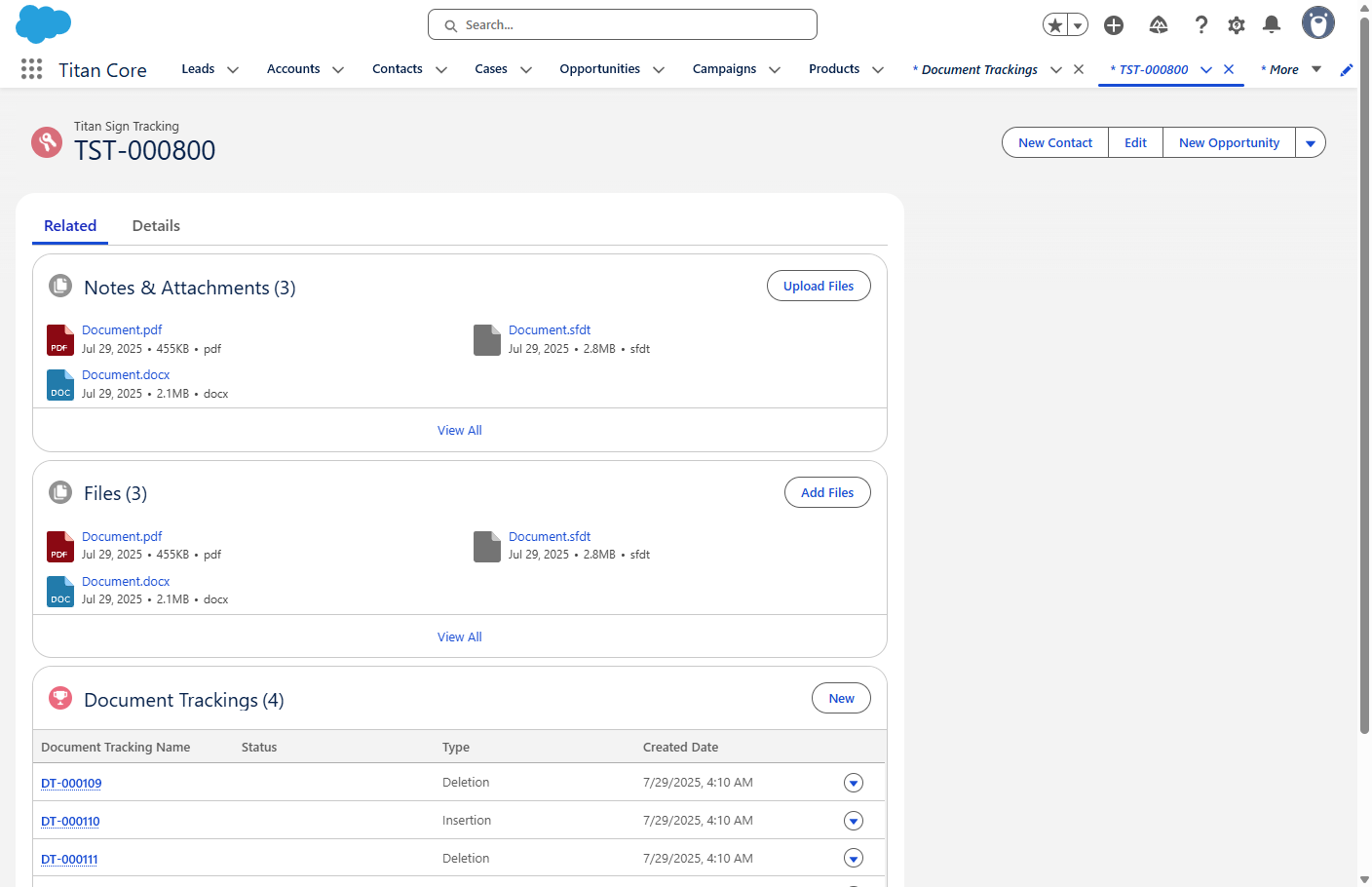
When clicking the Titan Sign Tracking link, the document can be opened from the Notes & Attachment section on the Related tab. An audit trail list of changes linked to this document is shown at the bottom of the tab.
In the meantime, the second collaborator (and owner) receives an email with a URL that opens the document with the changes made by the first collaborator. The changes are also listed in a table at the bottom of the email.
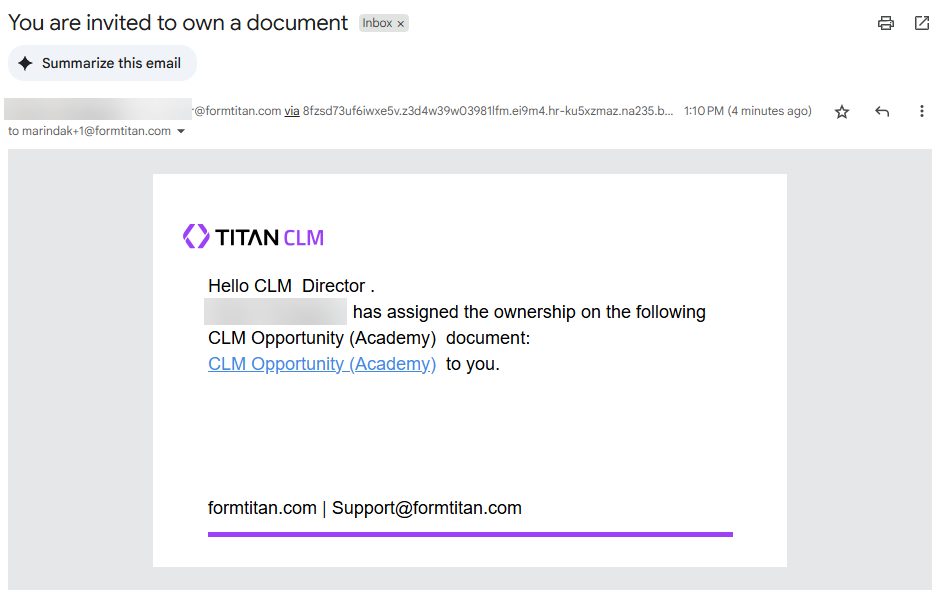
The second collaborator and document owner can make further changes as required and accept or reject all changes, whether made by the first or the second collaborator.
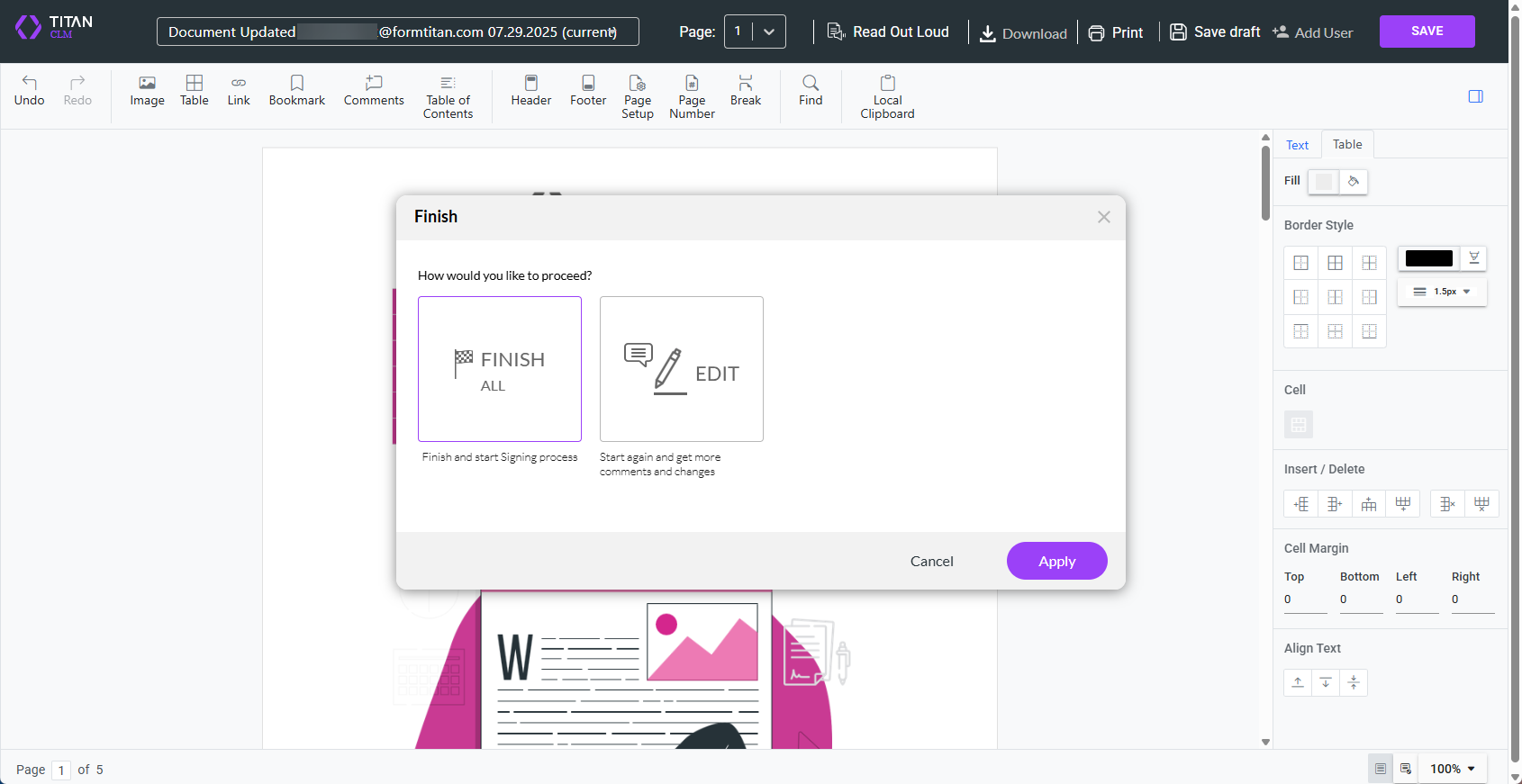
When the second collaborator clicks the Save button, they can click the Finish button to finish the editing process and start the signing process, or click the Edit button to send it for further edits.
In this lesson, clicking the Finish button and then the Apply button sends the document to the document owner to review the changes. The document owner can trigger the signing process when happy with the changes.
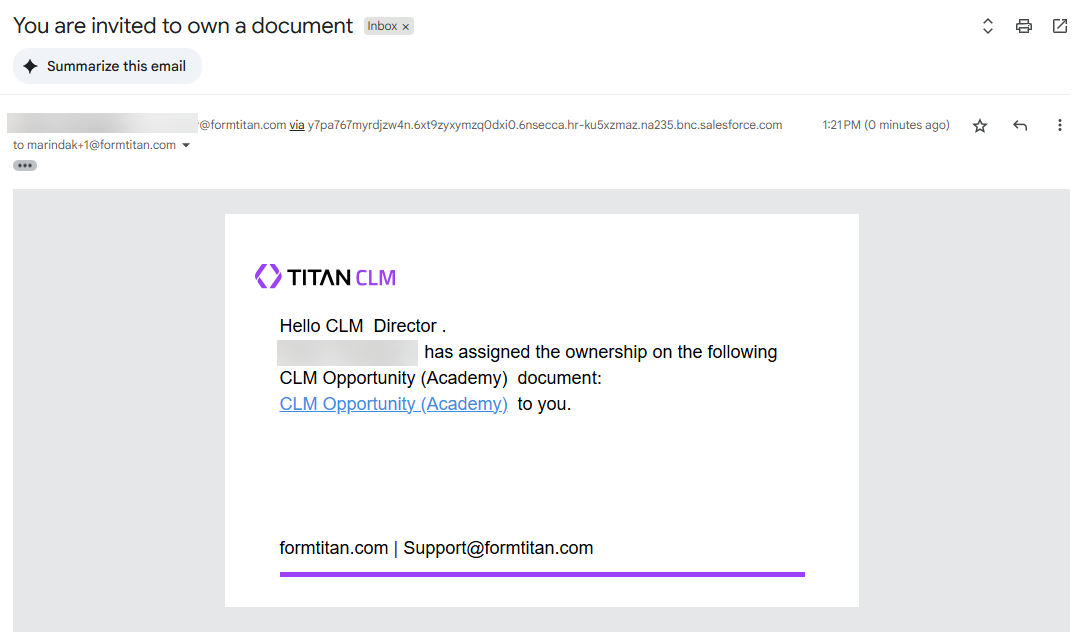
The owner receives a document to review.
When they are satisfied, they click the Confirm and Start Signing button. The document is then sent to the signers configured in Titan CLM. When they have signed, the CLM process has been completed.
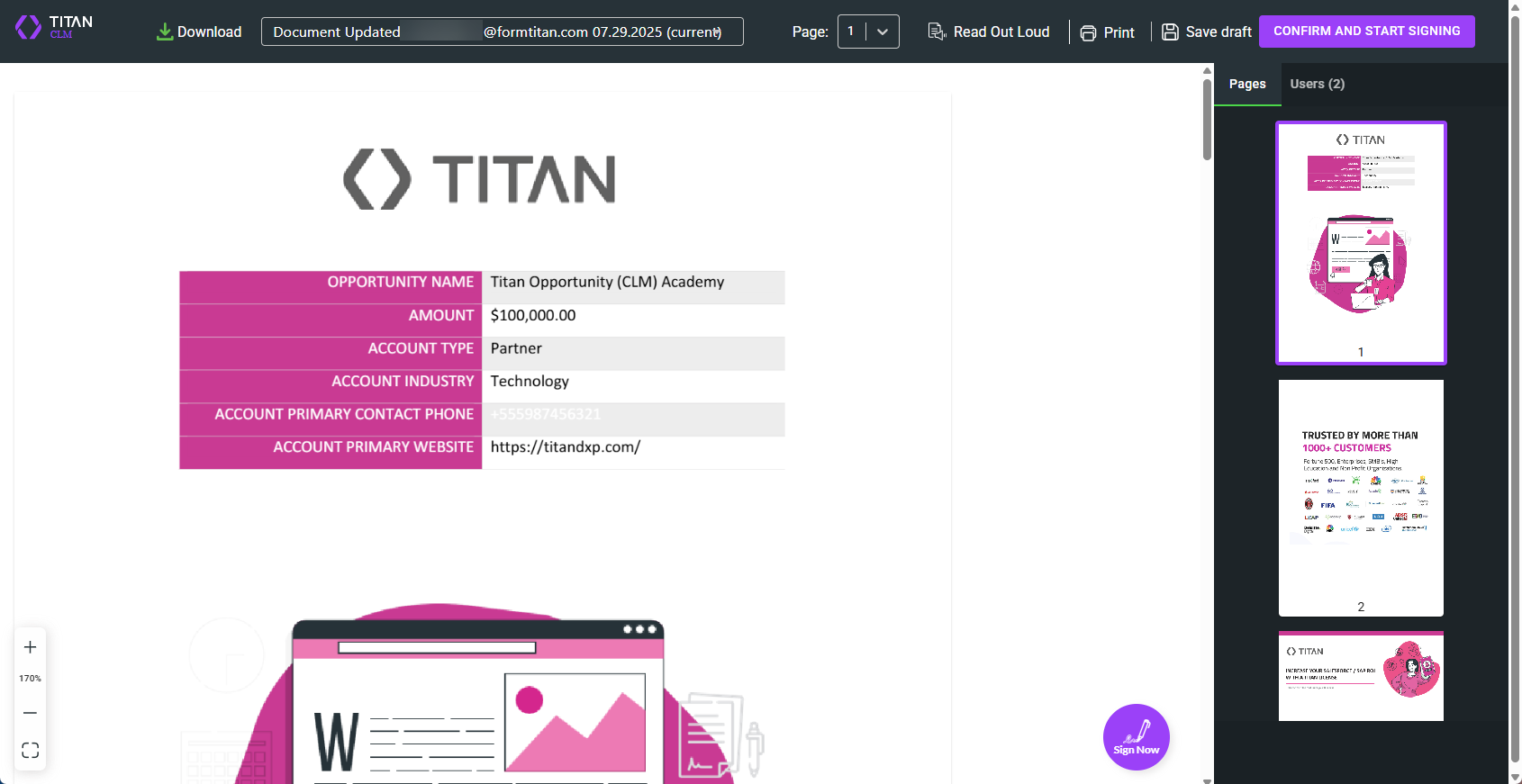
In this lesson, the first signer is a CLM Academy Consultant. They must sign in the signature field located at the end of the document.
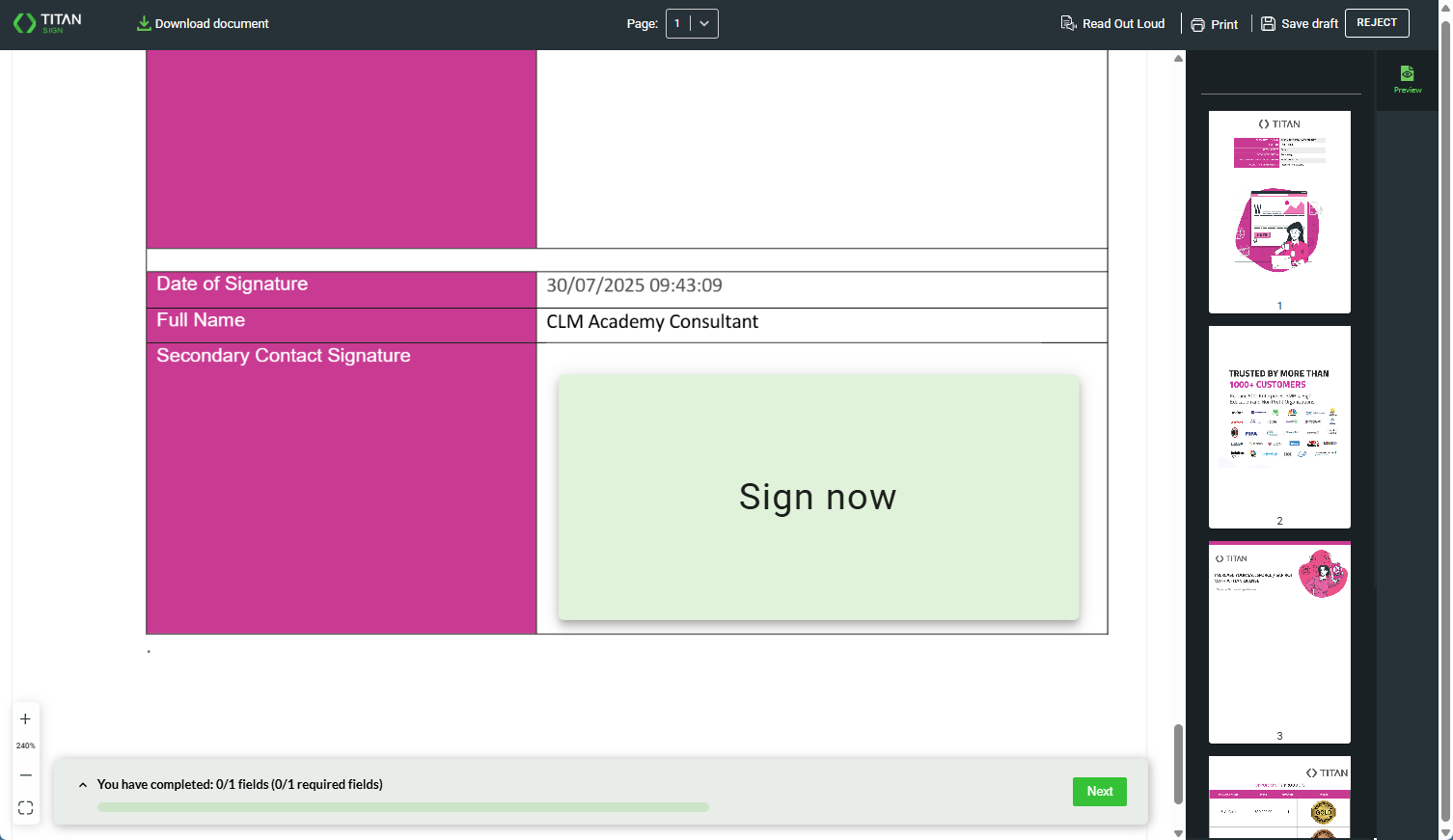
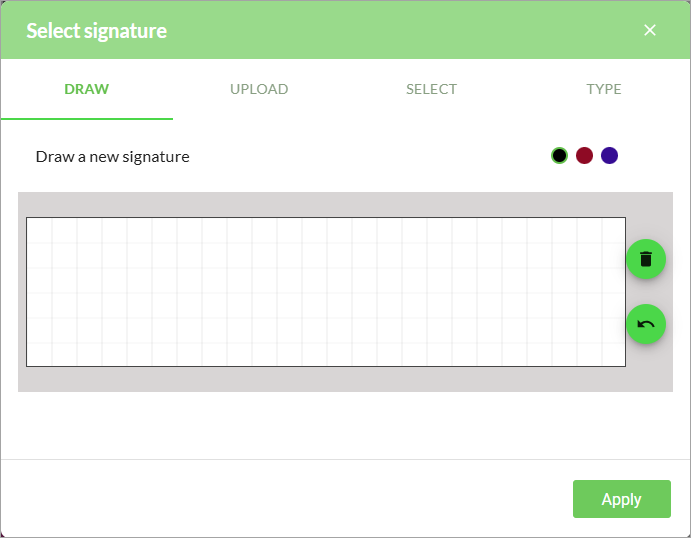
They can do this using one of the following options:
- Draw: Use the mouse cursor to draw a signature.
- Upload: upload a signature from the local device.
- Select: select a signature that was previously uploaded.
- Type: type a name in the field.
When done, the signer clicks the Finish Sign button and sends the document to the next signer.
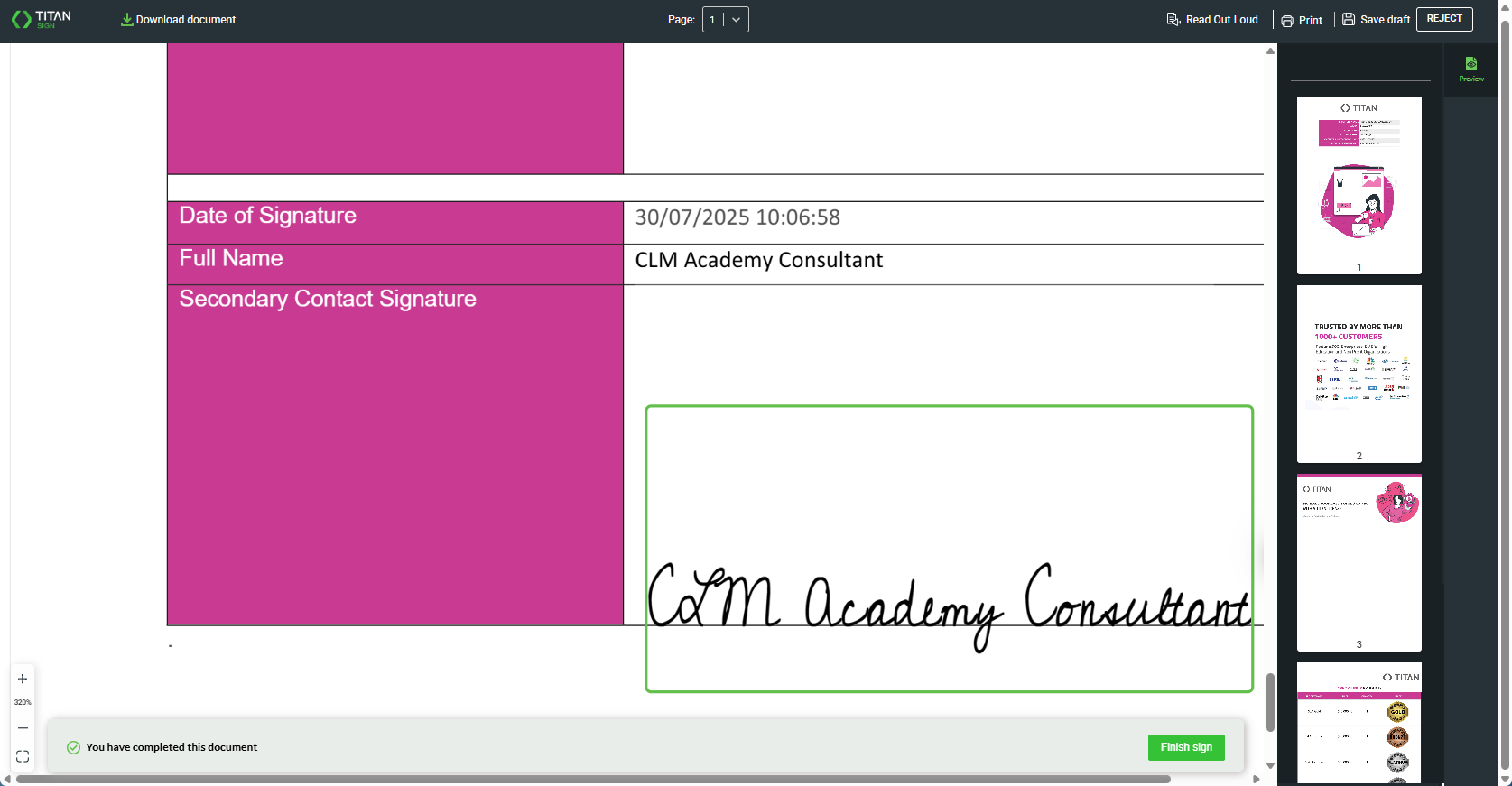
The next signer signs the document and clicks the Finish Sign button. In this case, it finishes the process.
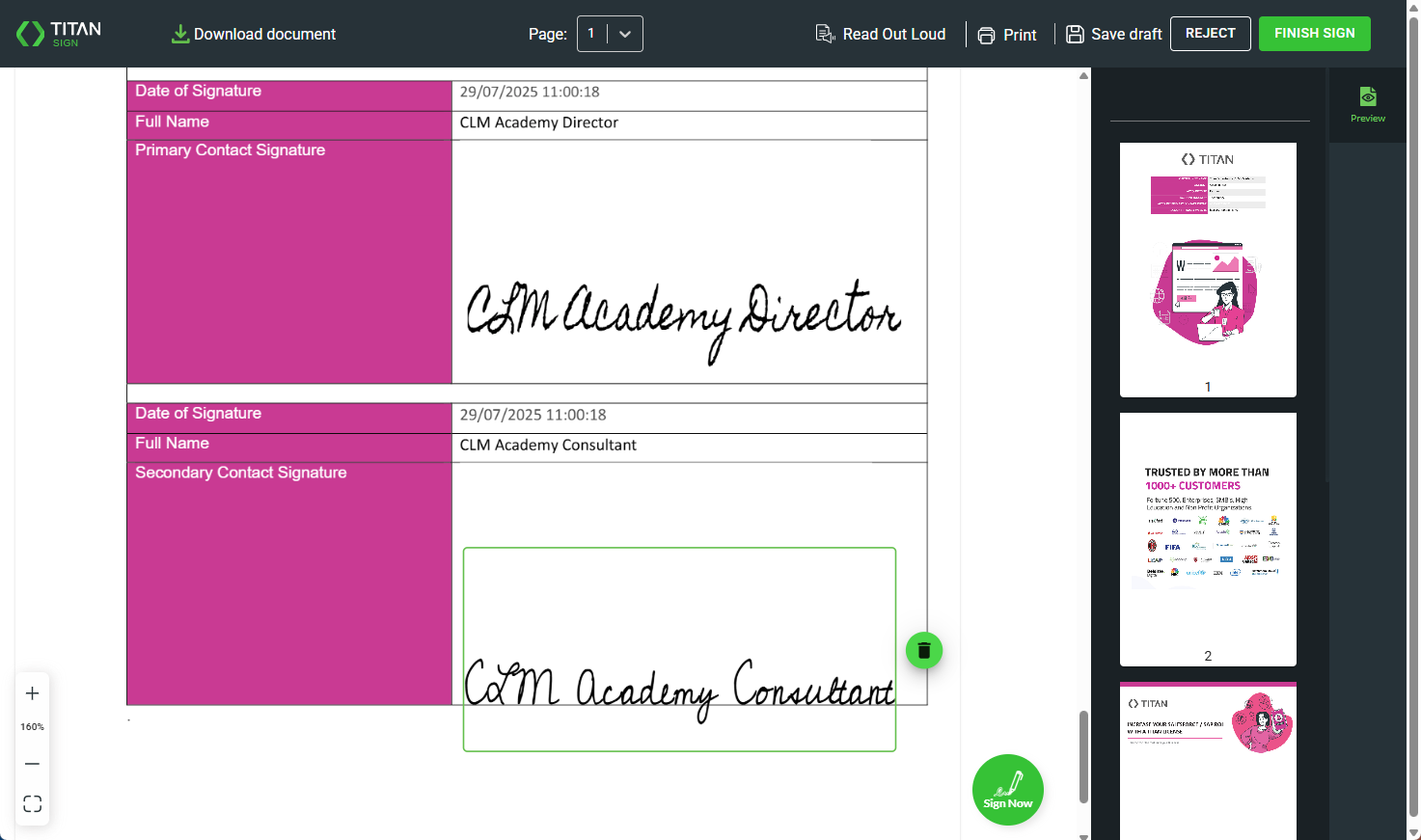
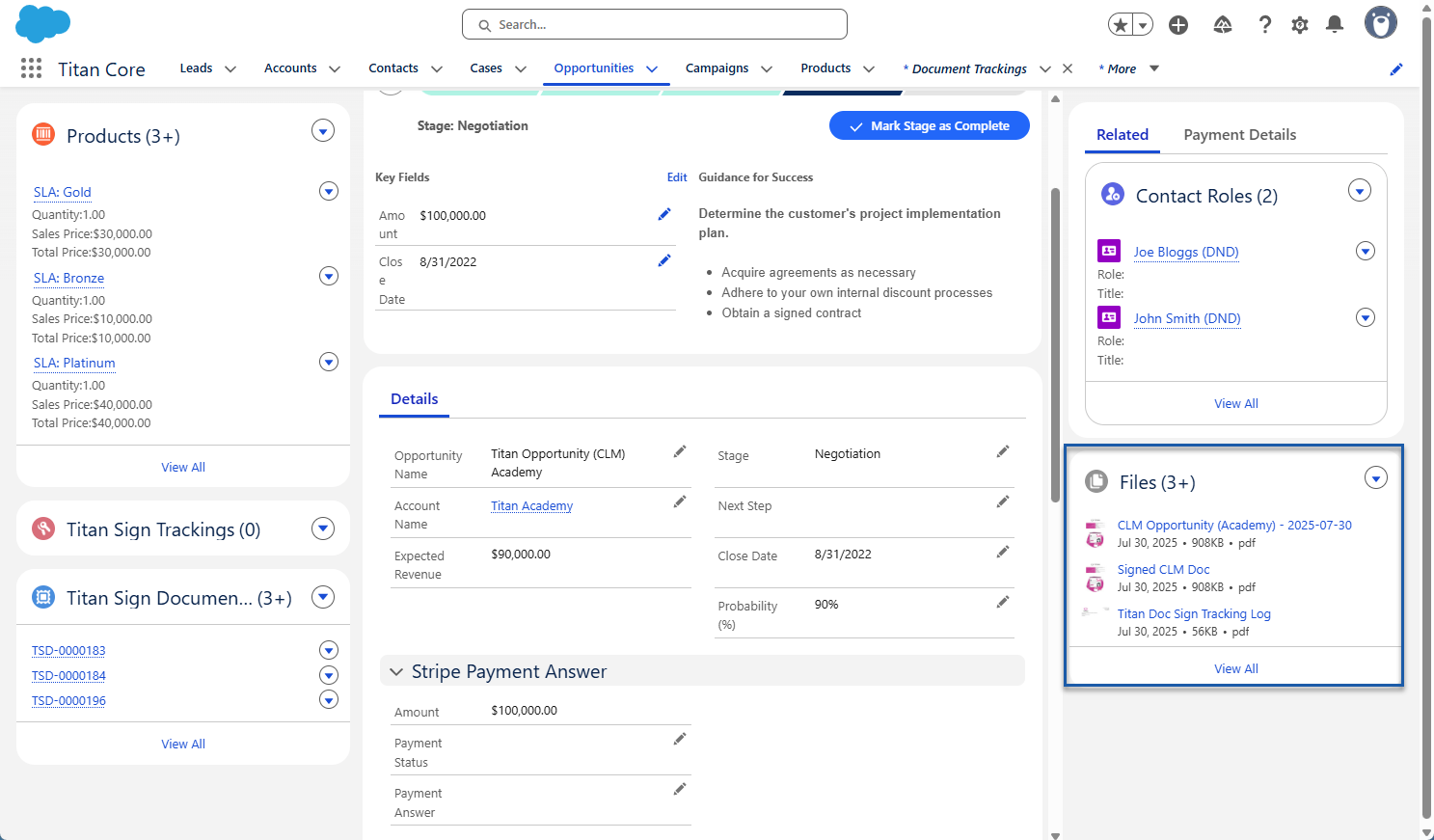
Once all the parties have signed, the edited and signed files can be seen in the Opportunity record in Salesforce.
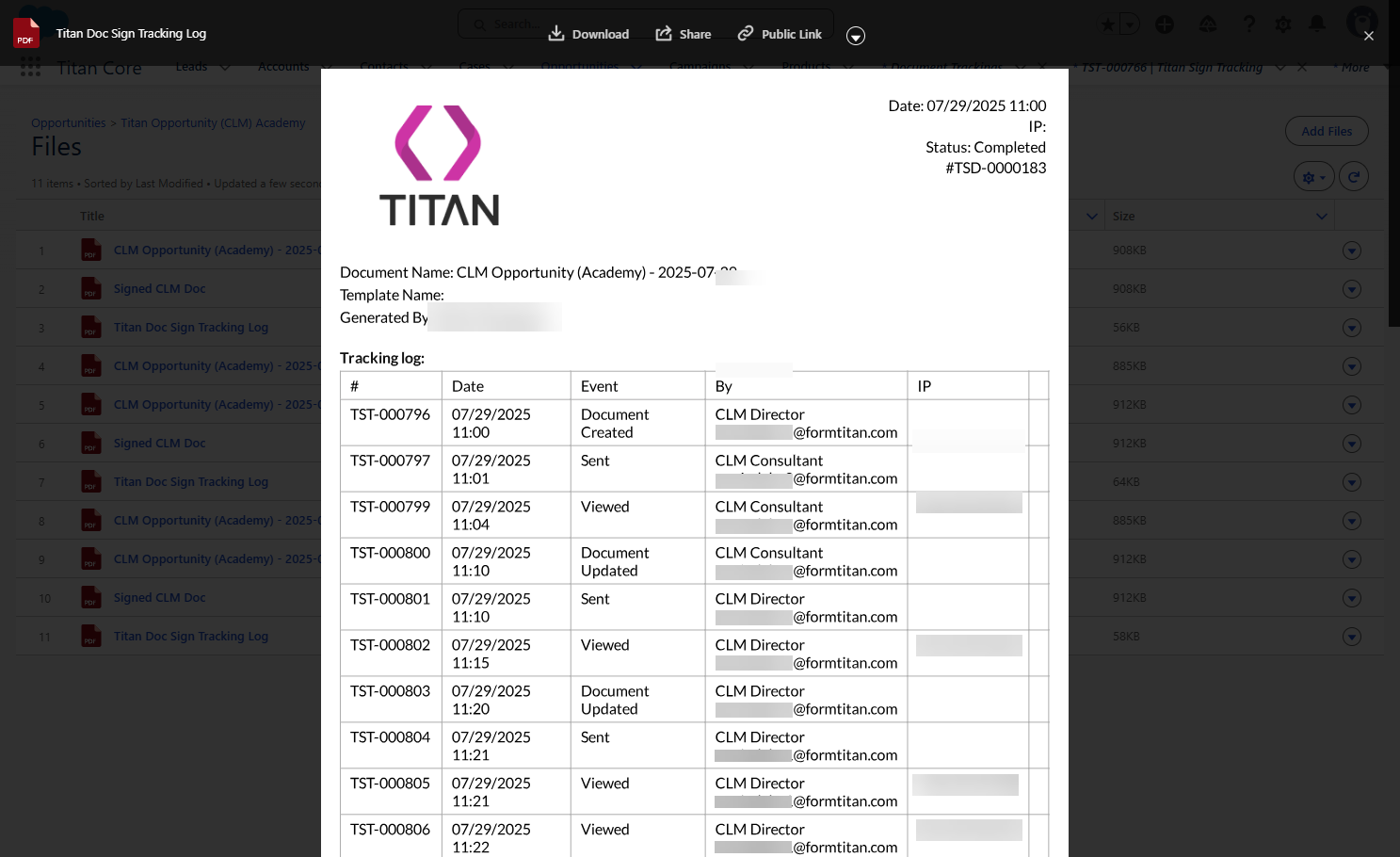
There is also a Titan Doc Sign Tracking Log file. This file lists the events, such as the following information about the document:
- A timestamp for each event
- The name of the person for each event
- Events such as:
- Document created
- Sent
- Viewed
- Document updated
- Completed
All the changes are also tracked on the Document Tracking object.
This is a short overview of the CLM capabilities in Titan and Titan’s integration with Salesforce.