Session Expire (5 min)
01 Getting Started
This tutorial covers how to troubleshoot issues when your SmartV sessions expire.
02 Session Duration
If your sessions expire too quickly, navigate to one of your SmartV pages and select the gear icon. You can control how long your sessions are valid in the login settings menu. It is important to consider how long it will take the user to complete a form.
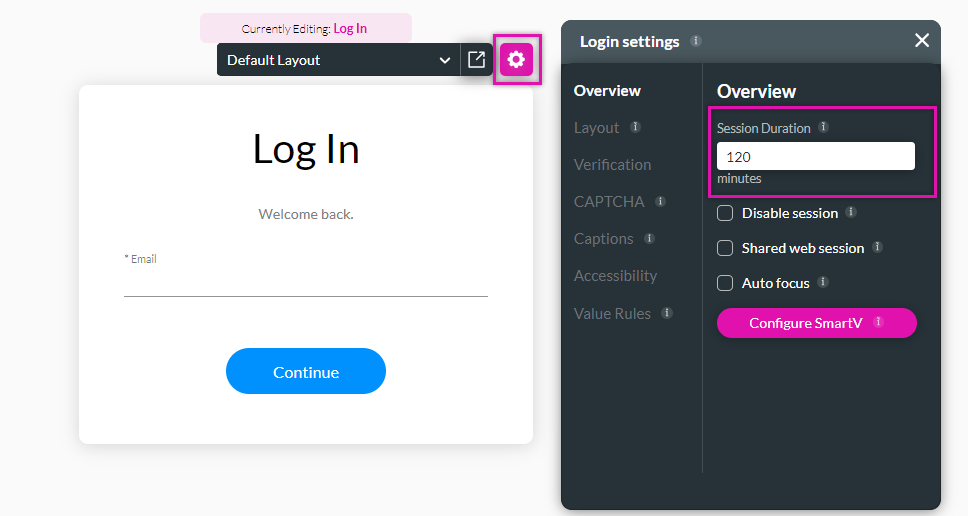
You can also turn off the session, meaning the user will stay logged in indefinitely.
You can also turn off the session, meaning the user will stay logged in indefinitely.
03 Session Expire Action
You can set specific actions to run when a session expires.
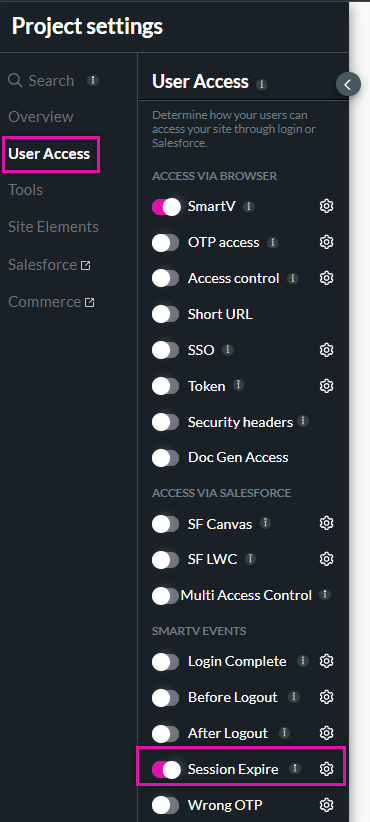
1. Navigate to Project Settings and select the User Access tab.
2. Enable the Session Expire toggle switch and click the gear icon to configure an action to run when the session expires.
1. Navigate to Project Settings and select the User Access tab.
2. Enable the Session Expire toggle switch and click the gear icon to configure an action to run when the session expires.
04 Custom Varibales
You can also create a project condition to alert the user that they will be logged out and that the session is about to expire.